Work and Rest - Landing Page
| Audience: | All users |
| Last Reviewed: | 27 January 2026 |
| Introduction: | This topic explains how to use the Work & Rest application for Crew Hours |

The Work and Rest application is made up of two modules which monitor the crews work and rest hours on board the vessel
Crew Hours are entered and committed by crew members
The Head of Department (HOD) reviews, approves the hours, monitors the regime and compliance on board to plan crew rotations

Work and Rest is a tool to monitor the crews work and rest hours on board, where hours worked are entered by the crew and then the Head of Department (HOD) reviews, approves the hours, monitors the regime and compliance on board to plan crew rotations.
The HOD can also enter hours worked by the crew members
Hours can be
- Preplanned
- Have violations against the ILO regime selected highlighted
- Be recorded in 30 minute increments
- Have comments included
- Include watch-keeping status
- Printed and Signed
Crew Hours - Filters, Actions and Functions
The Crew Hours Landing page allows the user to enter their hours worked for the selected month
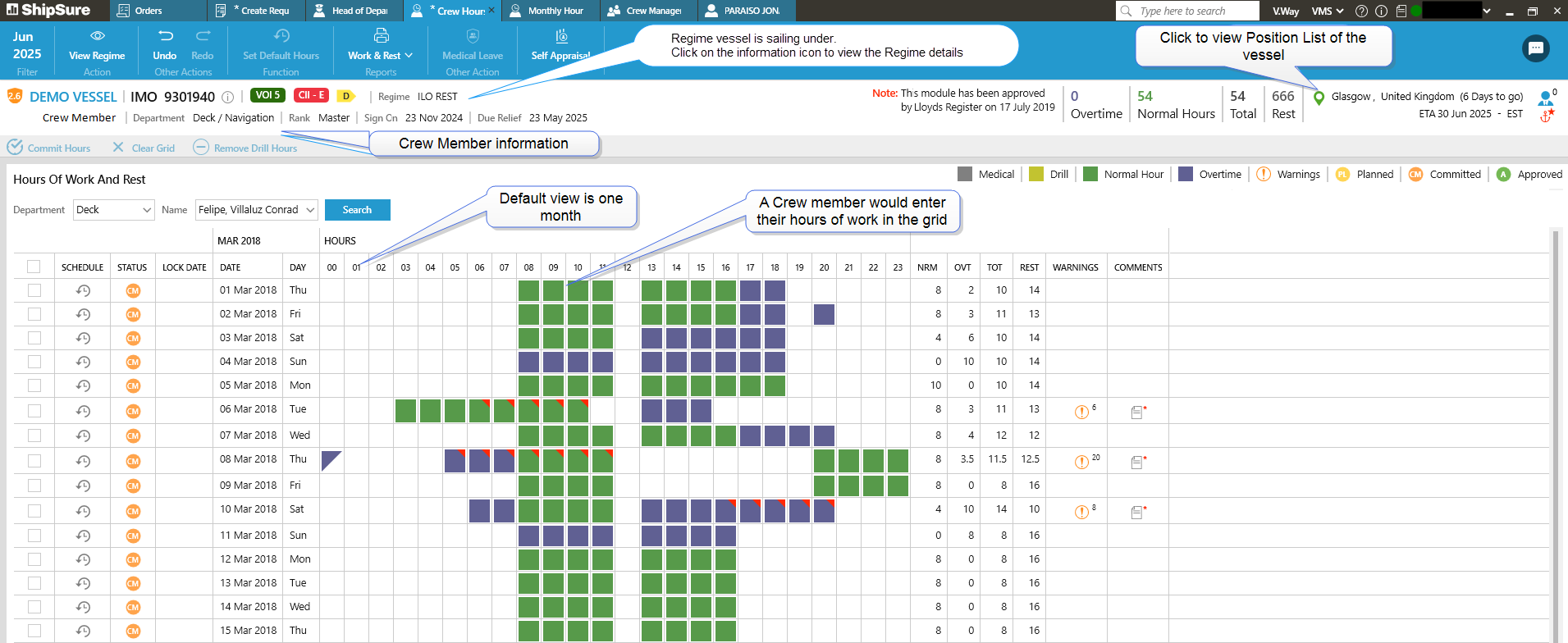
As the default view is one month, an individual day can also be clicked on to navigate to that view from the main page
Click on the  icon and select the month from the dropdown list. A grid for the selected month will appear on the screen were Work hours can be entered or edited as required
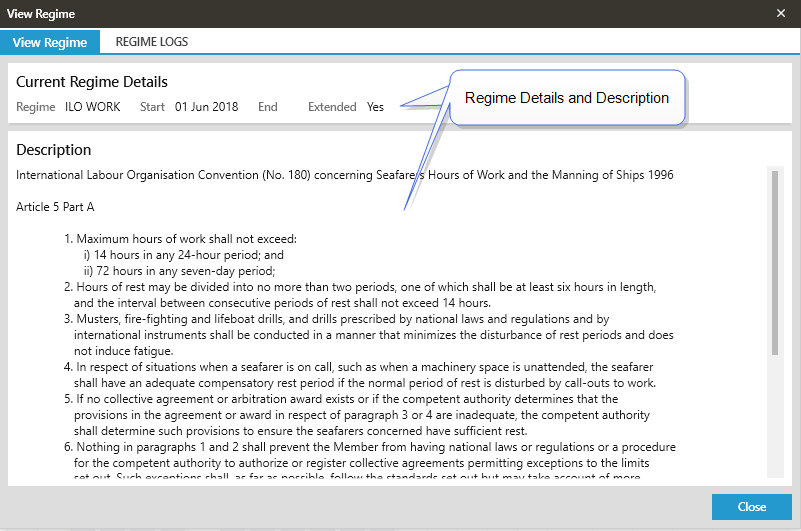
Click on the  icon to view the Current Regime details that the vessel is sailing under and to view the Regime Logs.
By default the regime it is set to is ILO and can only be edited by the HOD.
Current Regime
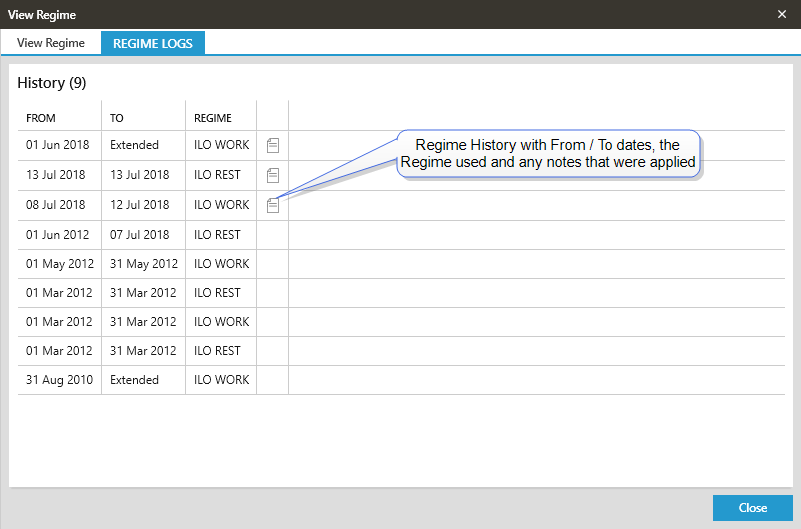
Regime Logs
Changing Regime
See How to Change a Regime - This is for Head of Department only
If an entry has to be un-done or redone, click on the  icon and the latest action can be reversed or re-applied as required
To print out the Hours of Work & Rest click on the 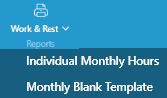 icon and select an option from the dropdown list
Enter the Individual Monthly hours to be printed by choosing the date range / Month & Year in the main Crew Hours screen then the report will be automatically generated.
A PDF file will be generated and placed in the bottom right hand corner of the screen. Double click on the file to open it
It is good practice for the HOD to use the Refresh function to refresh the screen and check for updates which working on the application.
By clicking on the  icon to implement and refresh any updates, changes etc. the grid will reload with all of the latest information
Click on the icon and select the month from the dropdown list. A grid for the selected month will appear on the screen were Work hours can be entered or edited as required
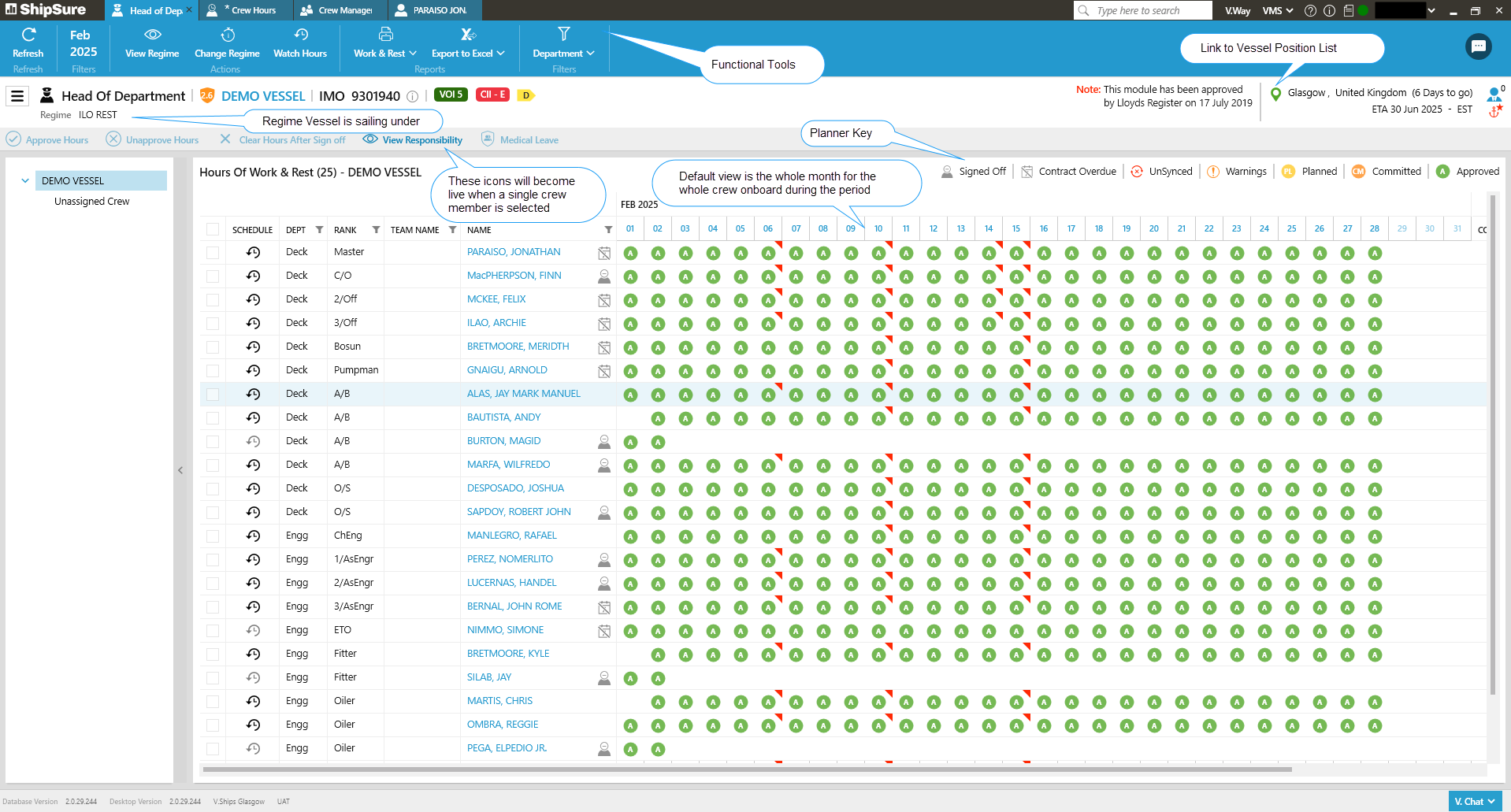
Only the HOD has access to Signing On and Off the crew - this is now done via the Onboard Crew Module
When a vessel initially uses the work and rest module the whole crew will need to be signed on in order that they can enter their hours of work.
From that point on, the crew list must be maintained for those who join and leave in order to keep the crew list up to date and accurate.
NOTE: A user cannot be Signed On if they have not been Signed Off from their previous vessel
If the crew member has not been on board this vessel previously, the HOD can Create a New crew member via the Onboard Crew Module
The HOD requires to Sign Off the crew member via the Onboard Crew Module when they leave the vessel at the end of their contract
NOTE: If the user has not been Signed Off they will not be able to Sign On to another vessel
Only crew who have had their hours committed and approved are available of Sign Off
Only the HOD can View and Change the regime on board the vessel and this can be done by selecting the  or
or  icon
icon
View Regime
A description of the current regime being followed and a history of what regimes have been followed on board the vessel are presented in the View Regime grid
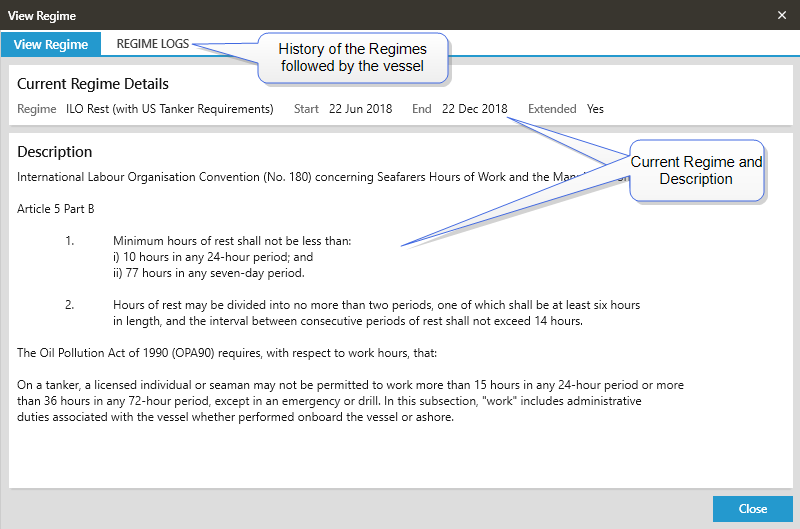
By default the regime it is set to is ILO REST but can be changed to reflect the vessel location and/or flag requirements.
ILO Work Report
The Crew ILO Work Report (using the Annex II format from the ILO Standard Report) but covering the inclusion of the following end columns based on ILO Work Regime
- 'Hours of work as applicable in any 24 hours'
- 'Hours of work as applicable in any 7 days'
Change Regime
The regime on board can only be changed by the HOD and when changed it is applied to the whole crew and can be for a set period of time or for an extended period as required.
Click on the icon to view the current regime and select a new regime.
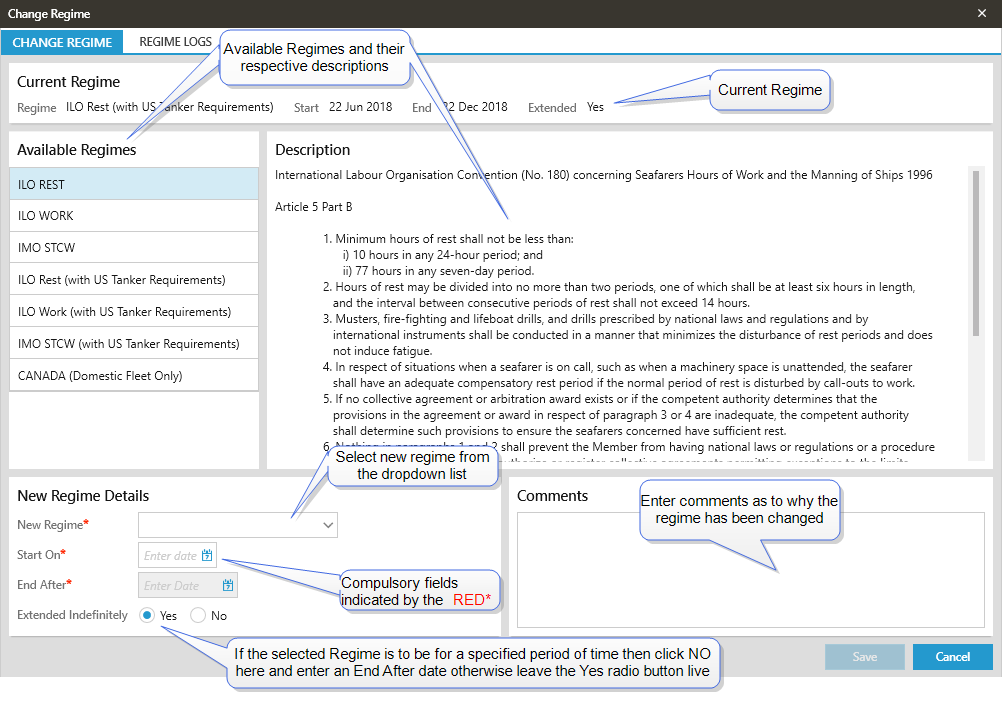
- Any fields with a RED* are mandatory and must be competed
- Select the new Regime from the dropdown
- If the selected regime is to be for a specific period of time then enter the Start and End date and tick on the No radio button for Extended Indefinitely However, if the new regime being entered does not have an end date tick on the Yes radio button
- If hours have been entered in for a time period and a change is made to the Regime, the hours will be revalidated.
- Likewise if the change is being made historically the hours entered will be revalidated.
NOTE: The regime can only be changed historically up to one month prior, i.e. if the regime was being changed on 14th of the month then it can only be changed back as far as the 1st of the previous month
Click on the  button and the system will ask for the change to be confirmed, select Yes and the system will confirm
Regime logs
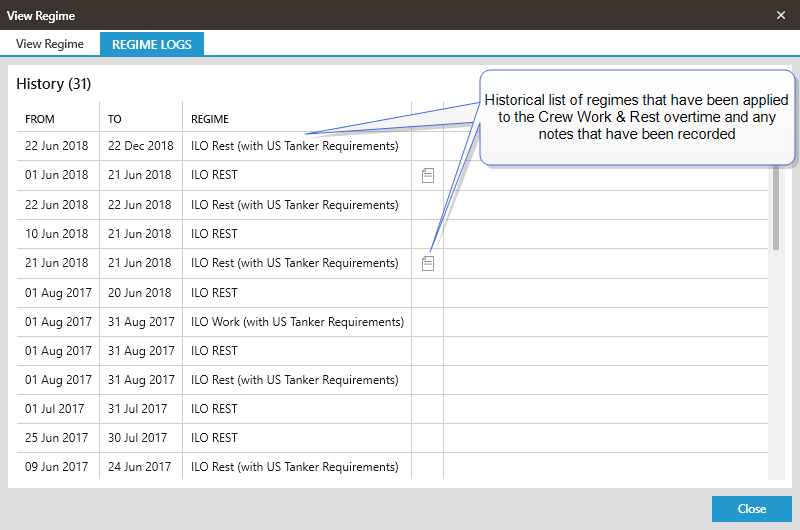
Select the Regime Logs tab in the View & Change Regime to view the history of the different regimes that have been applied on board the vessel over time and any notes that have been made
Click on the Work & Rest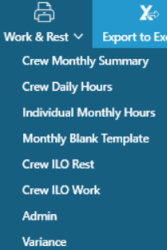 or the Export to Excel
 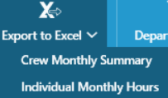 icon and select an option from their respective dropdown lists
Work & Rest Report Screen Example:
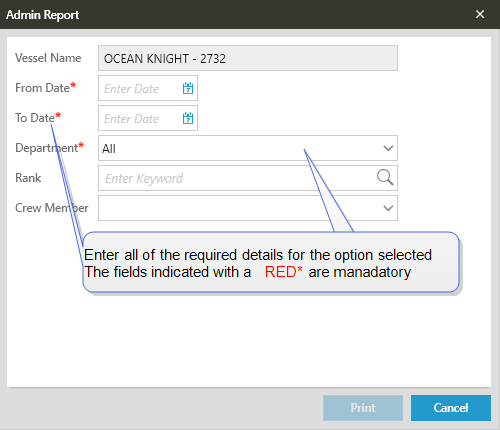
Complete all of the fields and then click on the  button
A PDF file will be generated and can be found at the bottom left hand side of the screen. Click on the file to view the print out.