Head of Department
| Audience: | All users |
| Last Reviewed: | 27 January 2026 |
| Introduction: | This topic explains how to use the Work & Rest application |

The Work and Rest application is made up of two modules - Head of Department and Crew Hours
On board the HOD view will be for their vessel only - Onshore can select the vessel required to be viewed
Onshore it is read only access
HOD functionality is for Senior Crew Members only

The Head of Department view allows for SENIOR crew members to add crew work hours, review, approve hours, add comments, update the crew list and monitor the regime and compliance on board for planning crew rotations
The HOD / Master cannot enter crew hours – this is done by the individual crew members only.
Hours can be:-
- Preplanned
- Have violations against the ILO regime selected highlighted
- Recorded in 30 minute increments
- Show overtime and normal
- Have comments included
- Include watch keeping status
- Printed and Signed
The Onboard Crew Module is where the function of Sign On/Off, Adding & Editing Crew Members can be found
- To edit the crew members details i.e. change the Sign On / Off dates or other details this must be carried out via the Onboard Crew Module
- The office would normally create the crew members to be added to the crew list for the vessel but on some occasions it is a requirement that the HOD create the crew member and then 'Sync' the vessel list with the office list of crew members, this must be carried out via the Onboard Crew Module
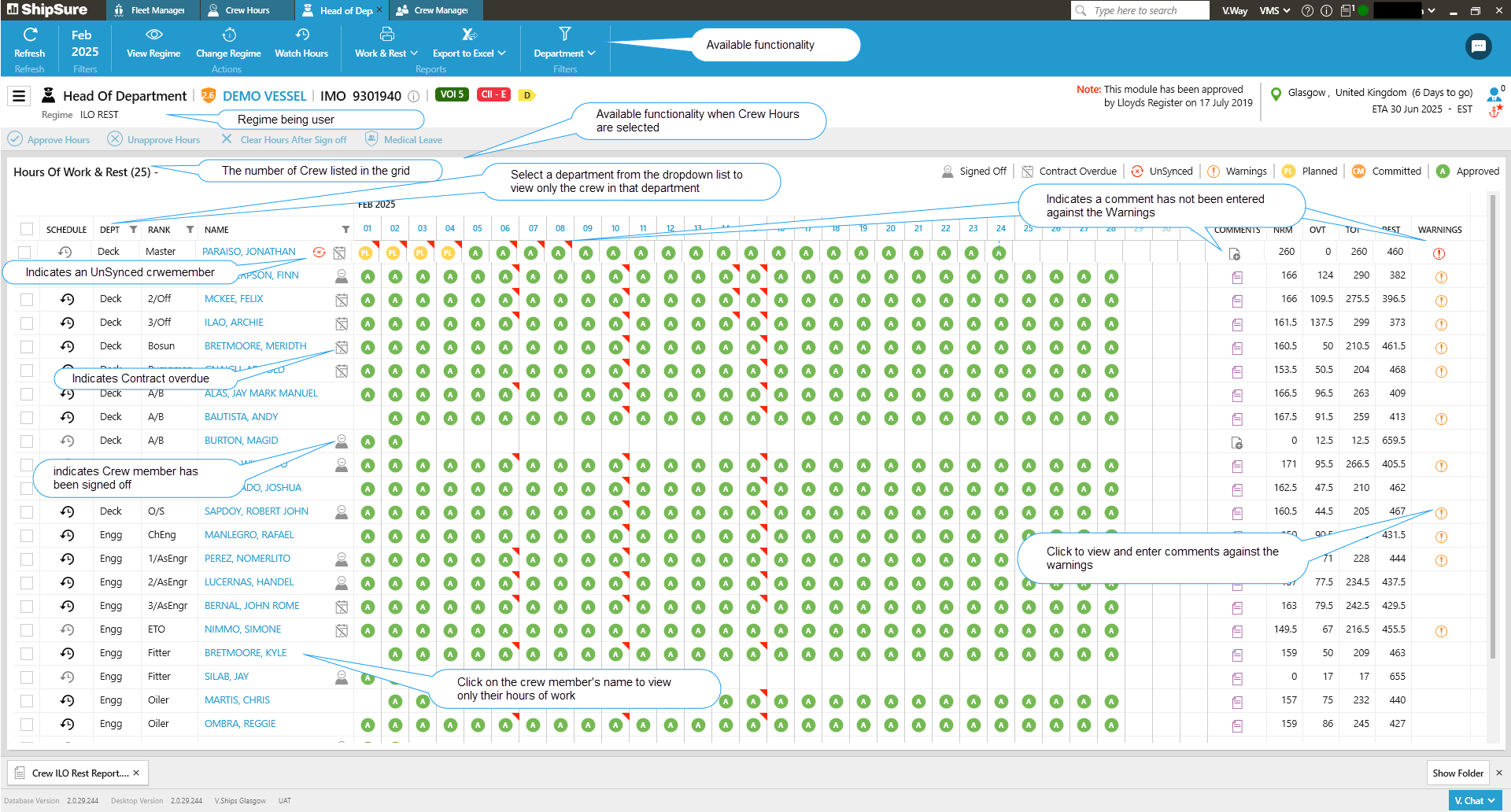
The HOD's view of crew member's hours of work defaults to displaying all of the crew on board for the selected month
Any hours that have been entered by the crew will load automatically, however, if the grid is blank this means no crew hours have been entered.
If no hours are entered the crew / HOD must enter them in using the crew hours module within Work and Rest.
In both the individual and monthly crew views the HOD can navigate to view other departments or crew members by selecting the department or crew name from the dropdown lists. Then by clicking on the search button only those crew members in the selected department will be displayed on the grid
Monthly View of All Crew hours
All crew members on board will be viewed here
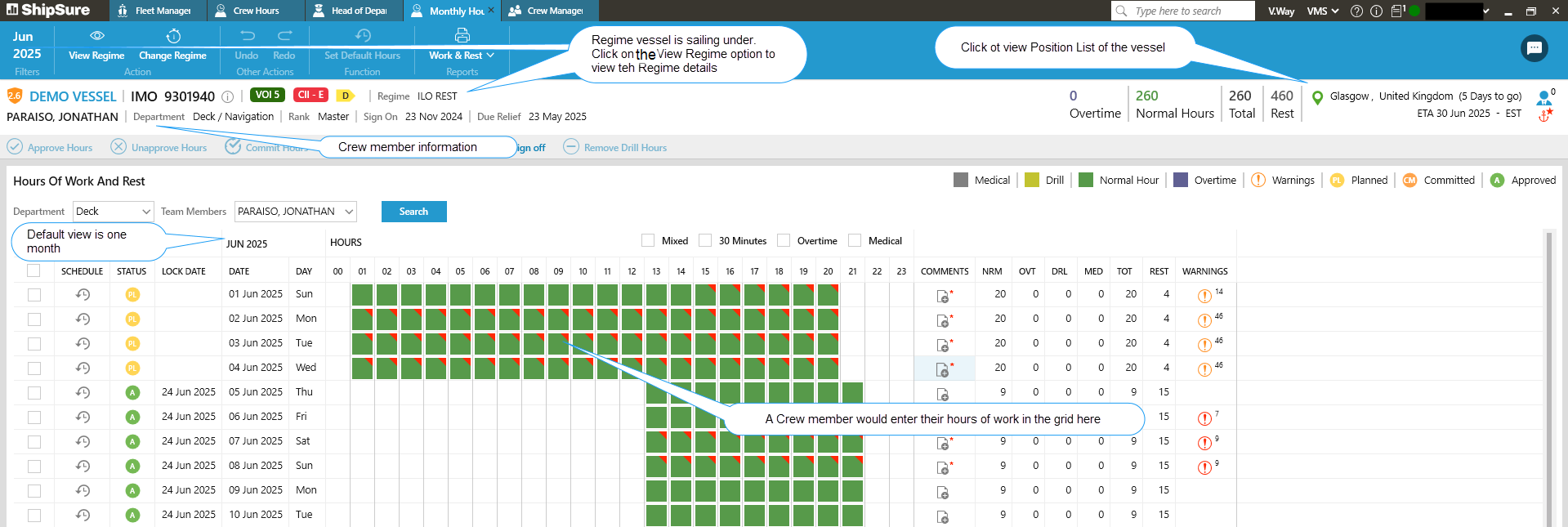
Individual View of Crew member hours
Individual Crew member hours and any warnings can be viewed here in the Monthly Hours tab by clicking on the name displayed in the Name column of the Monthly View.
Daily Hours View of a Crew members hours
Double click on the day to be viewed and a new tab called Daily Hours will load.
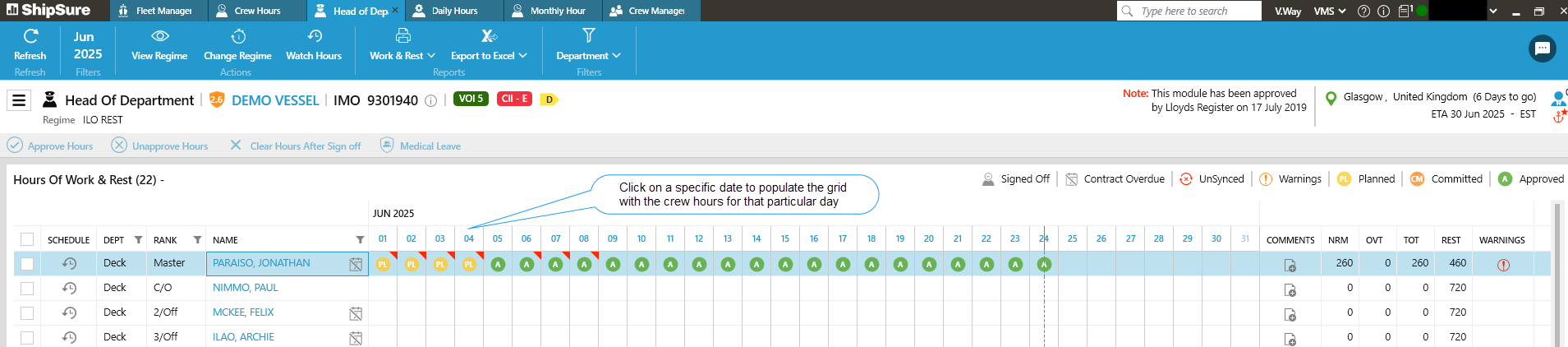
The daily view will be broken down into an hourly display
The individual icons displayed on the grid will assist the HOD in knowing the status of a crew members hours

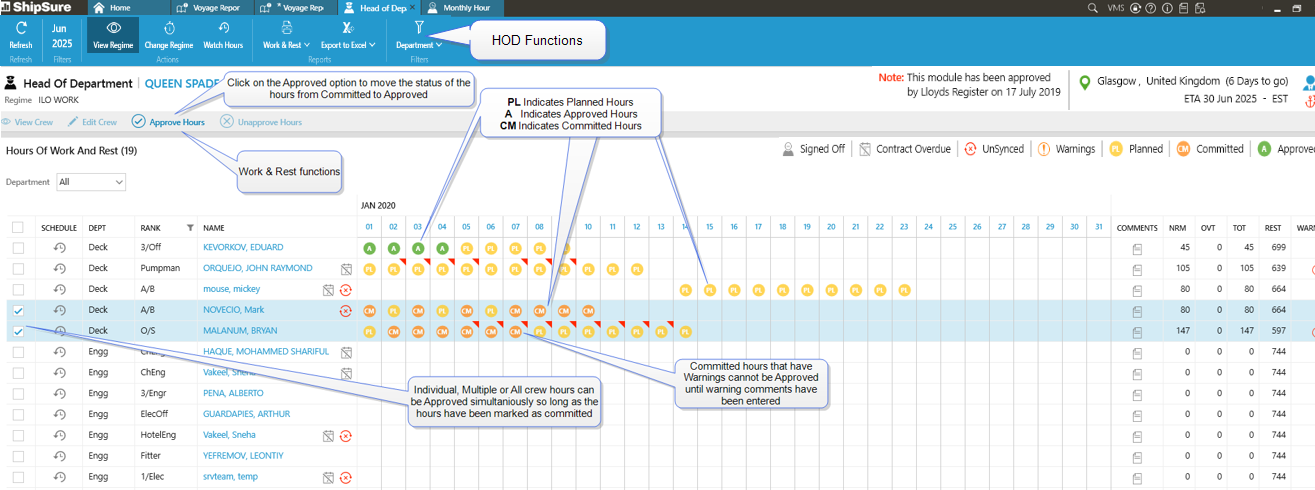
The HOD / Master can Approve hours if they have been committed or Unapprove previously Approved hours within the time frame
The HOD / Master can approve multiple users and multiple days at the same time
The HOD should check the crew hours before approving and this can be done by viewing the Individual or the Daily crew members hours grids
The hours can be Approved from within the Monthly view or the Individual crew member's grid views
- Select multiple or individual crew members and days by ticking the box(s) next to the Schedule column
- The hours being selected for Approval must be at CM (Committed) status or the Approve Hours icon will not become live
- Committed hours that have Warnings associated with them cannot be approved until the Warning Comments have been entered
- Now click on the
 icon
icon
- The system will request confirmation of the approved hours.
- Select Yes and the system will confirm
 or
or 
The hours on the grid will be changed from being CM (Committed) to A (Approved) status
To Unapprove hours follow the same steps as above, remembering to only select the crew members hours which are at the A (Approved) status and then click on the  icon
icon
The system will request confirmation of the approved hours.
Select Yes and the system will confirm that  updated
Only the HOD can Change Regimes and this can be done by clicking on the  icon
icon
The Change Regime grid will appear showing either the default regime ILO WORK or the selected current regime
The HOD can now opt select another listed regime and enter the New Regime Details and enter the detail as to why the regime is being changed
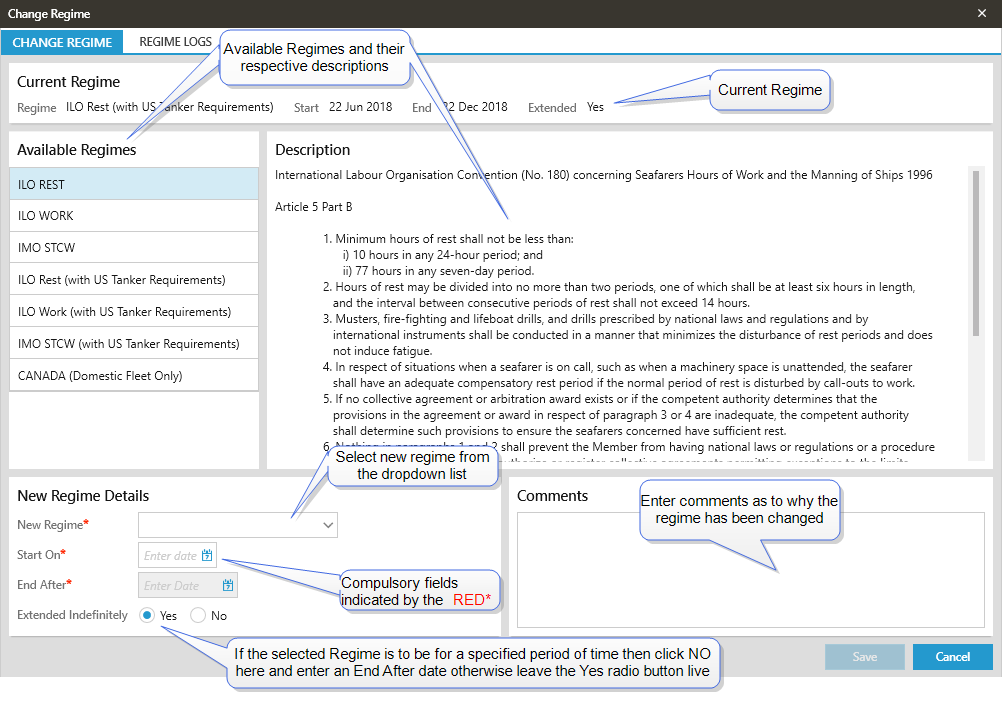
When all of the require details have been selected click on the  button and the regime will be applied.
The system will then ask for confirmation of the change, click on the Yes option and the system will confirm that the  changed
NOTE: The changed regime can only be applied to the current month and back 1 month
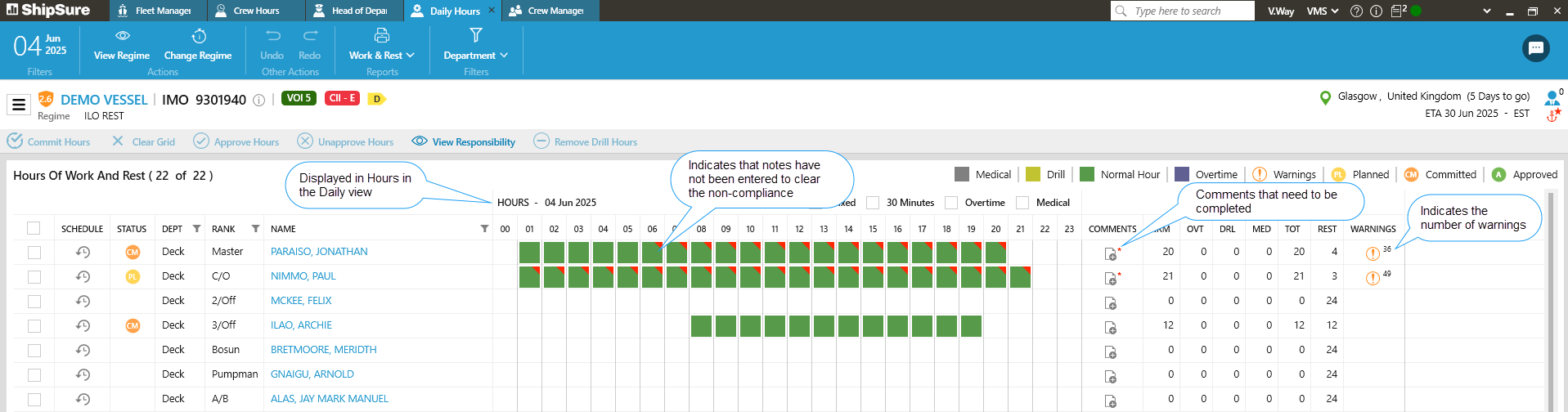
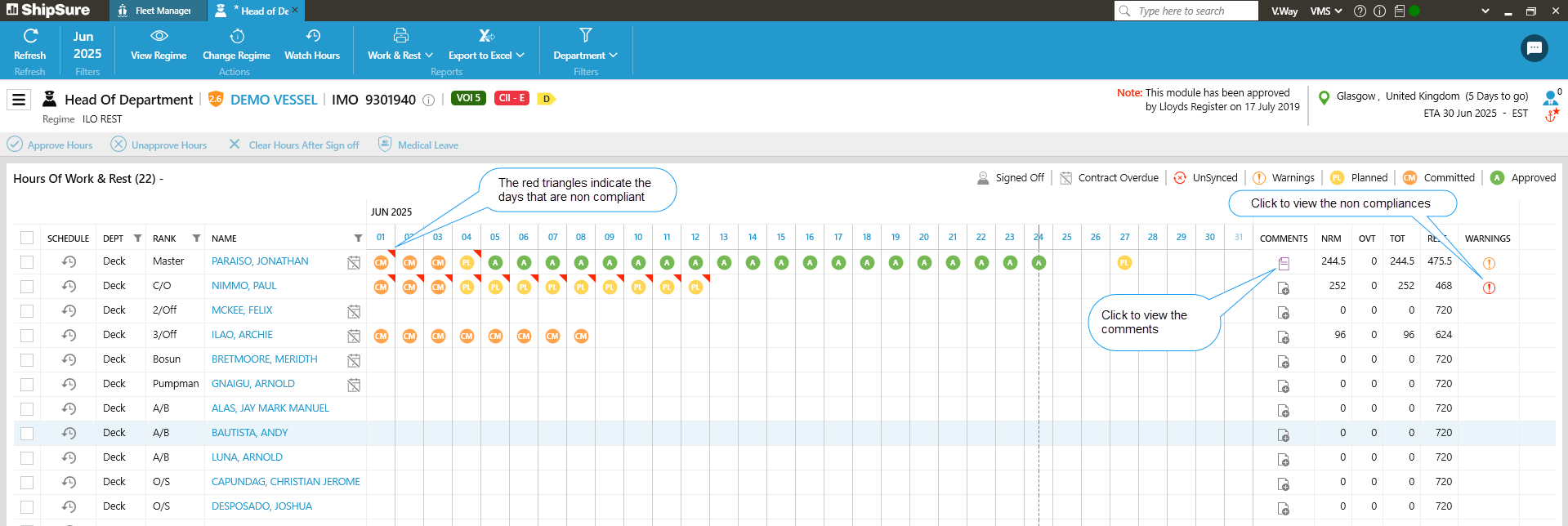
If hours worked are non compliant a red  icon which indicates weekly non compliance or an orange
  icon which indicates a daily non compliance will be displayed
Click on the warningicon to view the warning report for the non compliance
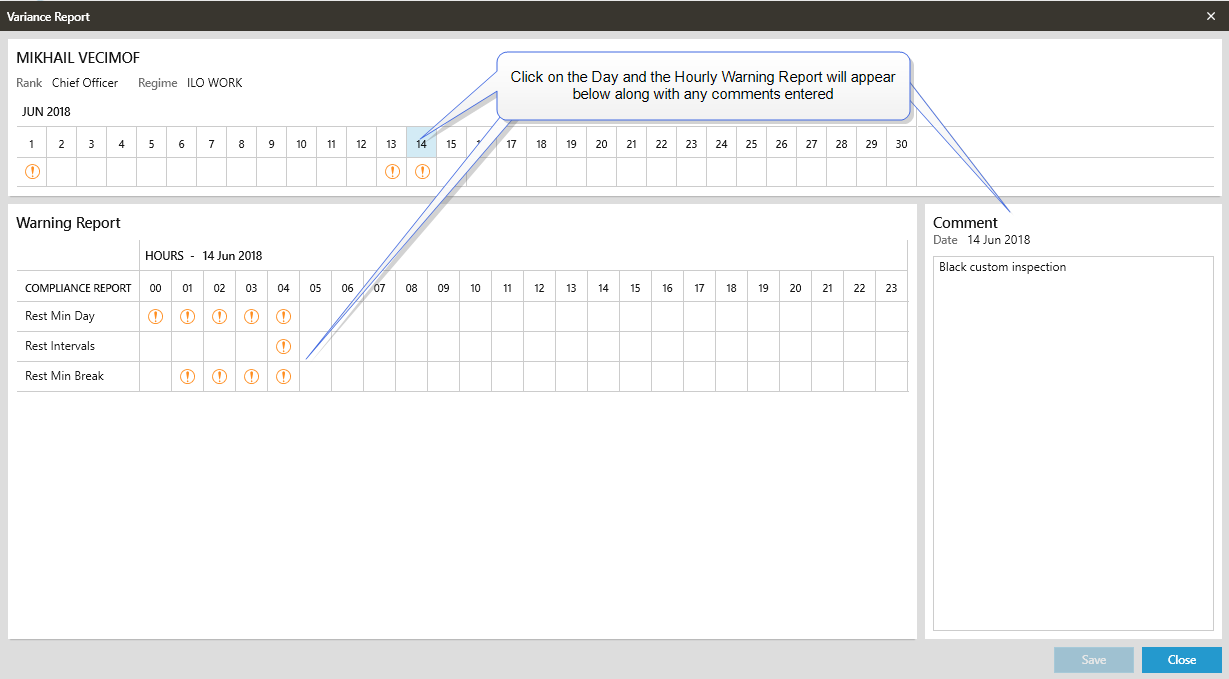
The HOD can view each breach and a description of the breach. The HOD can also enter in a comment and see comments that have been previously entered
Double click on the notes icon in the  column and if the comment
 icons in the grid have a RED* this means that notes have not been entered for the non compliance.
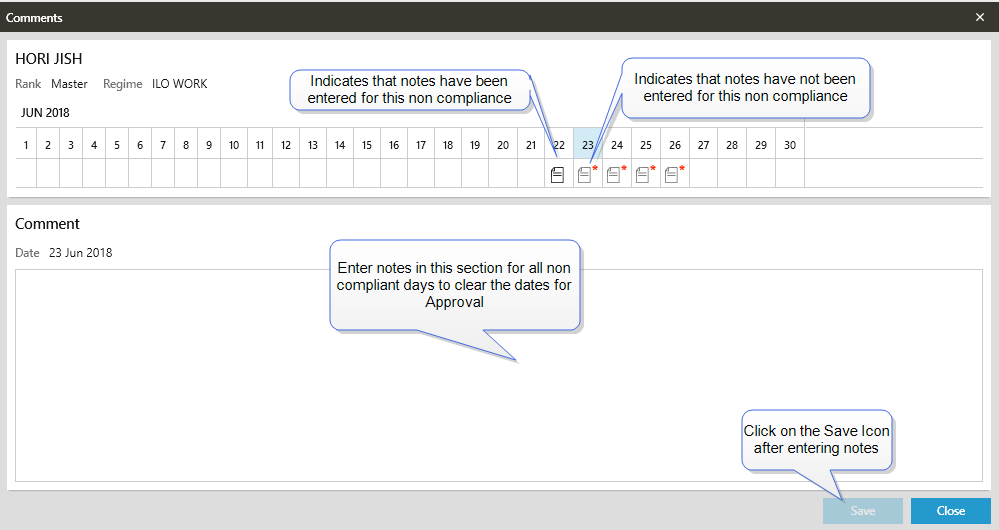
When the notes have been entered the icon on the main grid will change to a bold  notes icon
On the HOD main screen the comment icon will be visible along side the warning icon so highlights breach of regime.
The comment icon will only become black once all non-compliances have been commented on.
If hours are planned and non-compliant this is a warning to reconsider the planned hours.
Daily View of Warnings
When viewing the main grid with all of the crew members hours in the Daily Hours view this will display warnings slightly differently from the monthly view but each non compliance can be drilled down into and dealt with in the same way
Monthly View of Warnings
Comments can be entered by individuals or by the HOD / Master and the comments will then be included in the print out of the hours.
The HOD/Master will not be able to approve the hours without comments being entered for non-compliant hours.
Likewise the individual crew member will not be able to commit their hours for approval without entering comments for breached hours.
Adding Comments
Within a comments area there can be multiple entries i.e. from crew and from the HOD
- Select the comment icon and day date
- Enter in the comments and then click on the button
Viewing Comments
Click on the comment icon to open the Comments grid
- A comment icon with out a RED* means that a comment has been entered
- A comment icon with a RED* means that a comment is required in order for the hours to be Approved
- Select the comment in the date required and enter comments into the comments box
- Click on the button and the RED* will be removed from the notes