Reports
| Audience: | All users |
| Last Reviewed: | 27 January 2026 |
| Introduction: | This topic explains how to access and view all purchasing-based reports |

A list of reports currently available is shown below.
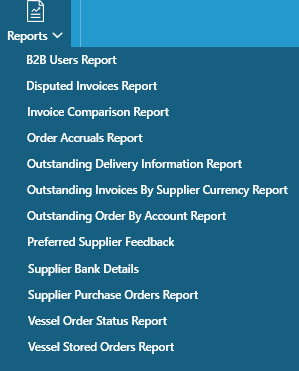
To access these reports, click the [Reports] button at the top of the Purchasing screen, then select the required report from the list.

This report will display all the Business to Business (B2B) User Details and confirm if they get Quotes/Invoices/Freight information.
Choose the output type you want for this report (pdf/excel/word)
This report will display all the disputed invoices.
Search for the specific office to report on. An office must be selected before the report can be printed.
This report will display all the invoices and includes the variances.
Search for a specific vessel to report on. If a vessel is not selected, the report will display invoices for ALL vessels.
This report displays invoices with outstanding balances, sorted by account code.
Search for a specific vessel to report on. If a vessel is not selected, the report will display for ALL vessels.
Select a to/from date and export type (PDF, Word or Excel) to generate a report to show the preferred supplier feedback.
This report will display all Suppliers & their Bank Details.
Choose the output type you want for this report (pdf/excel/word)
This report will display all orders that are either stored at a warehouse or are ready ex-works.
Search for a specific vessel to report on. If a vessel is not selected, the report will display stored orders for ALL vessels.
This report displays purchase orders with outstanding balances (i.e. the supplier has not sent an invoice), sorted by account code.
This report will display the status of all orders for a specific ship. Enter a start and end date and the a report with the status of all orders created between these dates will be displayed.
This report displays all accruals for an office. Select an office and a start and end date and a report with all accruals for orders created between these dates will be displayed.
Select a vessel and define how the report to be sorted / displayed (e.g. by port name or order status).
Select a supplier and a from / to date, to show all purchase orders relating to the supplier for those dates.
Select a to/from date (PDF only) to generate a report to show the Office Buyer’s order volumes per vessel for those dates.
Select an Office from the list and a to/from date (PDF only) to generate a report to show that Office’s timeline of order requisitions per vessel for those dates.
Select an Office from the list and a to/from date with a x Days option (PDF only) to generate a report to show that Office’s Invoices Recorded Within x Days of Order Creation per vessel for those dates.
Select a to/from date & choose the ‘Order By Type’ from the list (PDF only) to generate a report to show the Office(s) Vessel Spend & order volumes for those dates.
Select a (Quotation) limit in USD & Within x Days of Order (PDF / Excel) to generate a report to show the Vessel order quotation volumes.