Invoice Comparator
| Audience: | All users who require to Process, Authorise and Dispute Invoices |
| Last Updated: | 27 January 2026 |
| Introduction: |

The Invoice Comparator is used by Supt. and Buyers to Process, Authorise and Dispute invoices submitted by suppliers.
Finance users have Read Only access to the Invoice Comparator

Invoice Comparator
There are several ways to open the Invoice Comparator and the quickest way after opening the ShipSure Procurement application is from the users own dashboard.
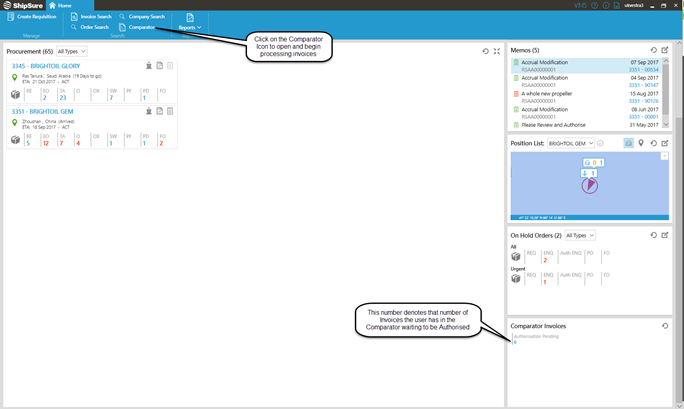
On the dashboard there is a Comparator Invoices widget and by clicking on the number (if there is one) this will open the comparator and display the vessels assigned to the user who's invoices are to be processed.

The application can also be opened by clicking on the Invoice Comparator Icon  on the Blue Ribbon. This Icon is also available on any of the Purchasing Tabs within the Procurement Application.
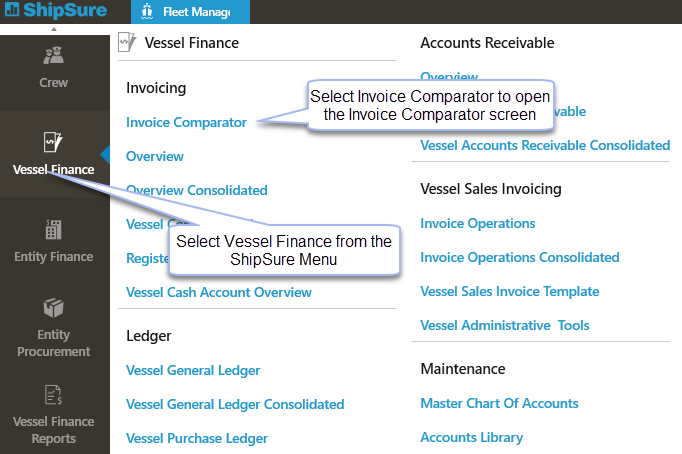
Another way is to click on the ShipSure Icon then select Vessel Finance then Invoice Comparator:
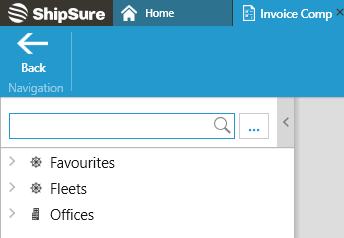
Then select the vessel who's invoices are to be viewed either by typing the name of the vessel into the search box or selecting it from the Favourites, Fleet or Offices options.
After a vessel has been selected the invoices allocated to the Buyer and Supt. will appear in a grid, where they can be (depending on job role) Authorised, Processed, Deleted, Disputed, Marked as Part Paid and Viewed.
The Comparator grid displays the invoices, their status and related information.
Depending on the user viewing the Grid i.e. Purchasing or Technical officer will change the options available within the grid.
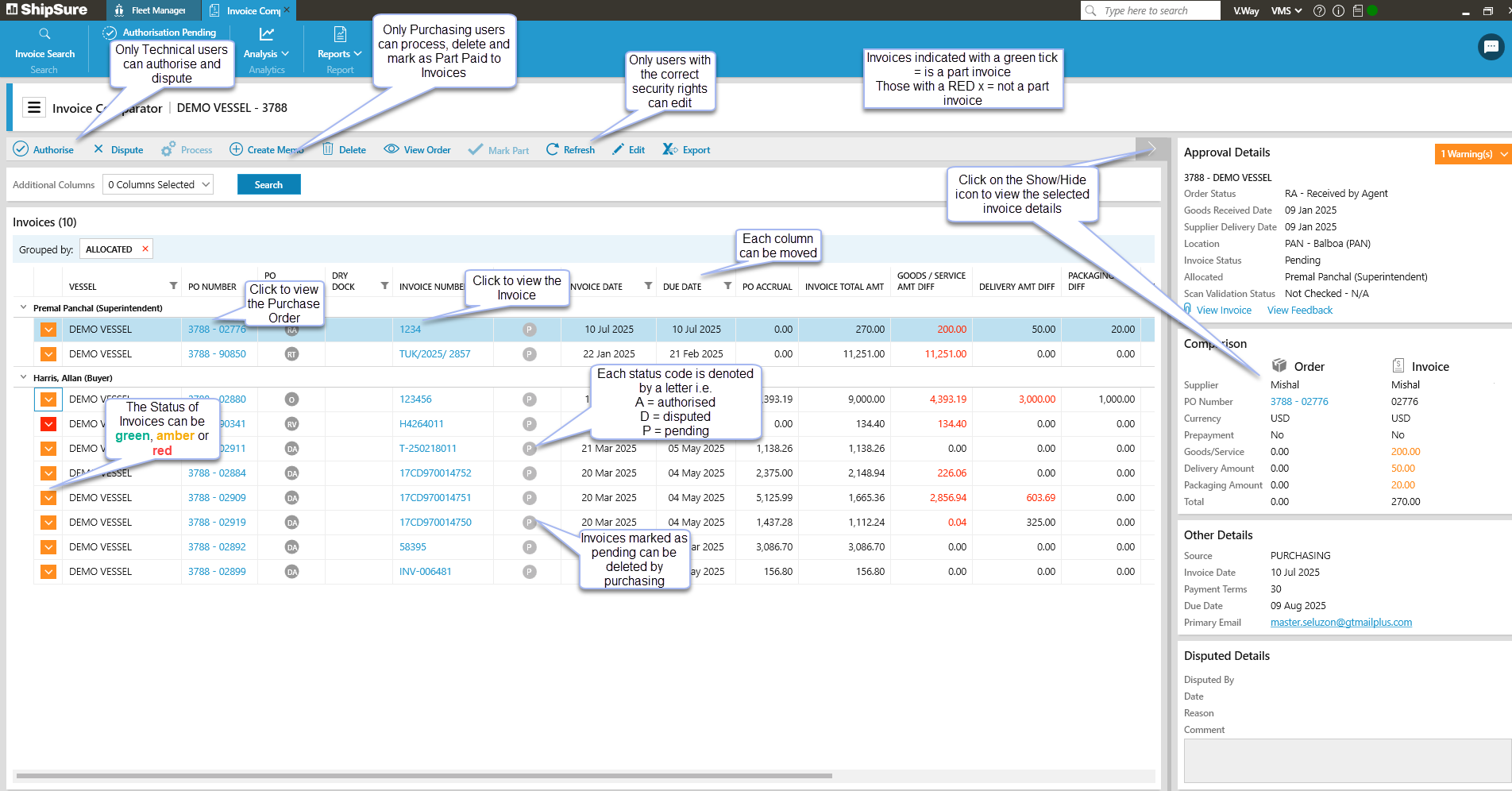
For example a Purchasing officer will not be able to Authorise and a Technical officer will not be able to Process invoices.
The invoices for both the Purchasing team and Technical team are displayed under the Assigned user names.
Each invoice status is indicated by a specific colour i.e. Green, Amber and Red.
 Green status invoices which are 'Ready for Processing' can be Processed by the Buyer or Purchasing Manager.
 Amber status invoices which are 'Pending' can be Mark Part (paid) or Deleted by the Buyer. The warnings at this level need to be cleared by the Buyer in order for them to be made ready for Processing
Amber status invoice which are 'Pending' can be Disputed and / or Authorised by the Supt. or Fleet Manager. The Supt. & Fleet Manager will only have Amber status invoices
 Red status invoices with a 'Pending' can only be Deleted or have the Red warnings cleared before it can be processed.
The warnings at Amber and Red levels need to be cleared, approved or disputed in order for the invoice to go to the Green Status i.e. 'Ready for Processing'
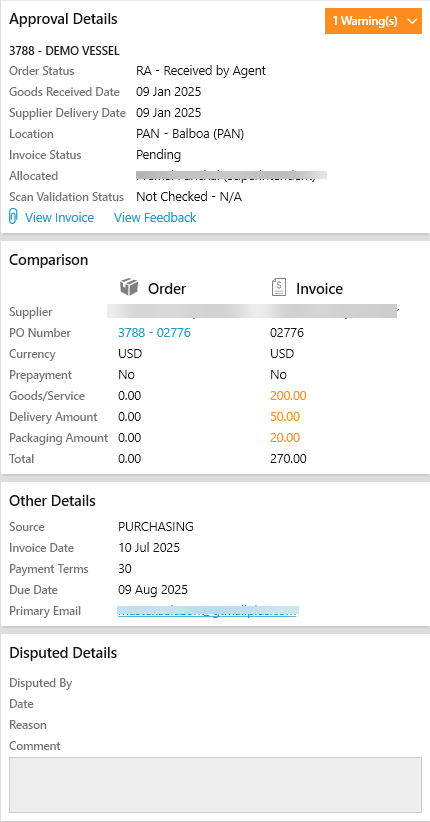
The Summary view on the comparator grid displays any Warnings, Approval details, Invoice and Order Comparison, Other details and Disputed details for a selected invoice.
Finance Users - The below details are For Information Only
Only the Supt. or Fleet Manager can Authorise & Dispute invoices.
If an invoice has been Disputed the invoice must be Authorised by the Supt. or Fleet Manager before the Buyer can process it for payment.
Authorise Invoice
Select the invoice to be Authorised
Click on the Authorise Icon, the Authorise Comments window will open where the reason / comments for Authorising the invoice must be entered
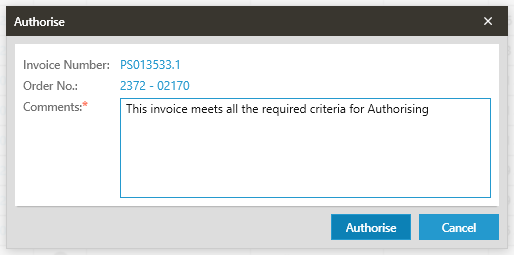
After entering suitable comments the Authorise button will become available for selection
Click on the Authorise button
The invoice will automatically be transferred from the Supt. invoice listing to the Buyers invoice listing
Dispute Invoices
Select the invoice to be disputed
Click on the Dispute Icon, the Dispute Comments window will open where the reason / comments for Disputing the invoice must be entered
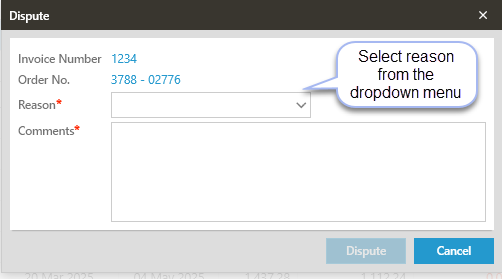
After entering suitable comments the Dispute button will become available for selection
Click on the Dispute button
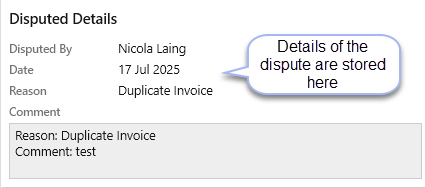
The reason for the Dispute can then be viewed by all users in the Disputed Details grid when the invoice line is selected
Only the Buyer or Purchasing Manager can Process, Mark Part (paid) & Delete invoices.
Process Invoices
Only a Purchasing officer has the ability to Process an invoice
Where the Comparator Status reads 'Ready for Processing' and the Green status icon is displayed, these invoices can be selected for processing
Highlight the invoice then click on the  icon to open and complete the Process Invoice window.
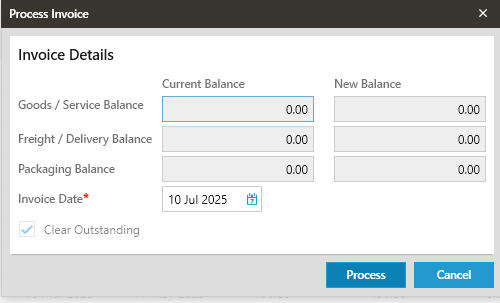
The correct amount for the PO Accrual (Outstanding) and / or the Delivery Amount Difference (Projected) amounts cannot be changed and if there is a difference less than USD $10.00 this can be cleared (not carried forward) by clicking the Clear Outstanding box.
Delete Invoices
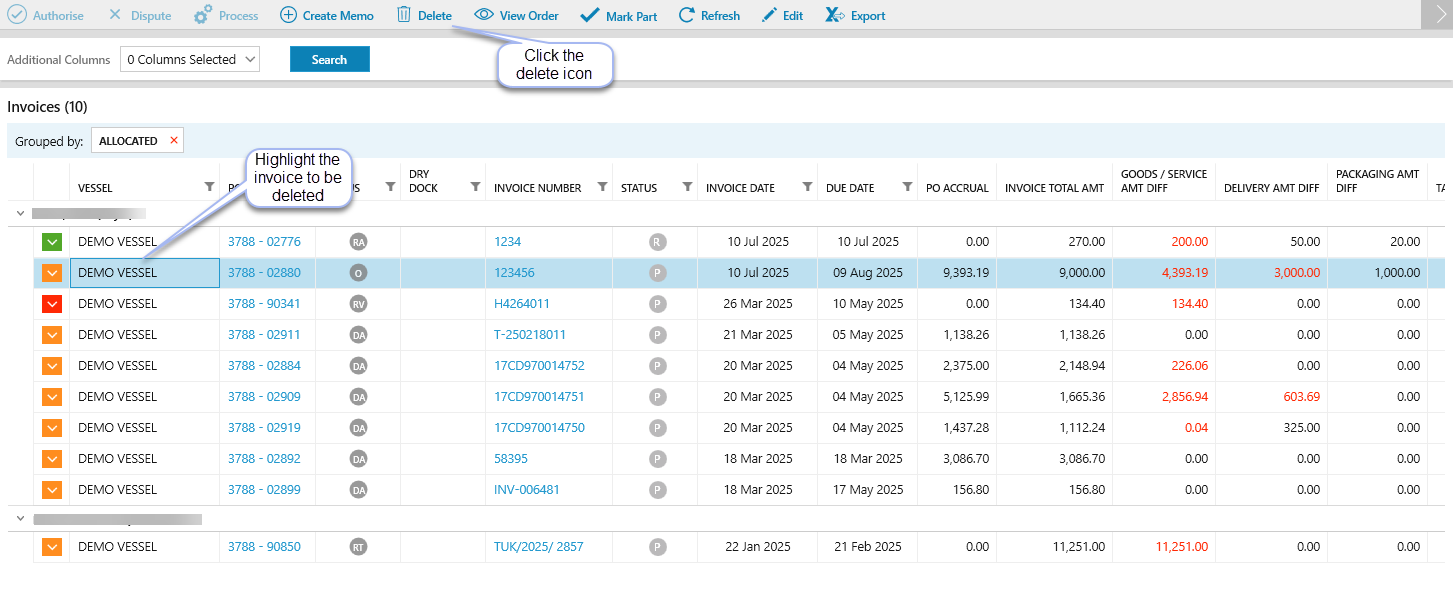
Only a Purchasing officer has the ability to Delete an invoice
Select the invoice to be deleted
Click on the Delete Icon
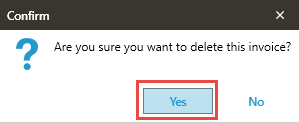
Confirm that the selected invoice is to be deleted
A green bar will appear at the bottom of the screen confirming that the Invoice deleted successfully
Only a Purchasing officer has the ability to Mark Part of an invoice as part paid.
Where the Comparator Status reads 'Pending' and the Amber status icon is displayed, these invoices can be selected for Marking as Part paid.
Highlight the invoice then click on the  icon. The invoice will change from Amber status (Pending) to Green status (Ready for Processing)
NOTE: The purchasing officer would know that there are other invoices due to be received for this order and processed.
All users can Create Memos and any memos created are automatically associated with the PO they are related to and stored within the Memo Tab of the order.
Highlight the invoice that the Memo is to be associated with, then select the  icon.
icon.
The Create Memo window will open and all of the fields marked with *should be completed.
NOTE: If when selecting a recipient from the 'To' list and the Recipient Name & Email address and does automatically populate this means that these details are not in the system and need to be entered before they can receive a memo.
All users can view the Order Details summary.
Highlight the order to be viewed and then click on the  icon to open the Order Details summary window.
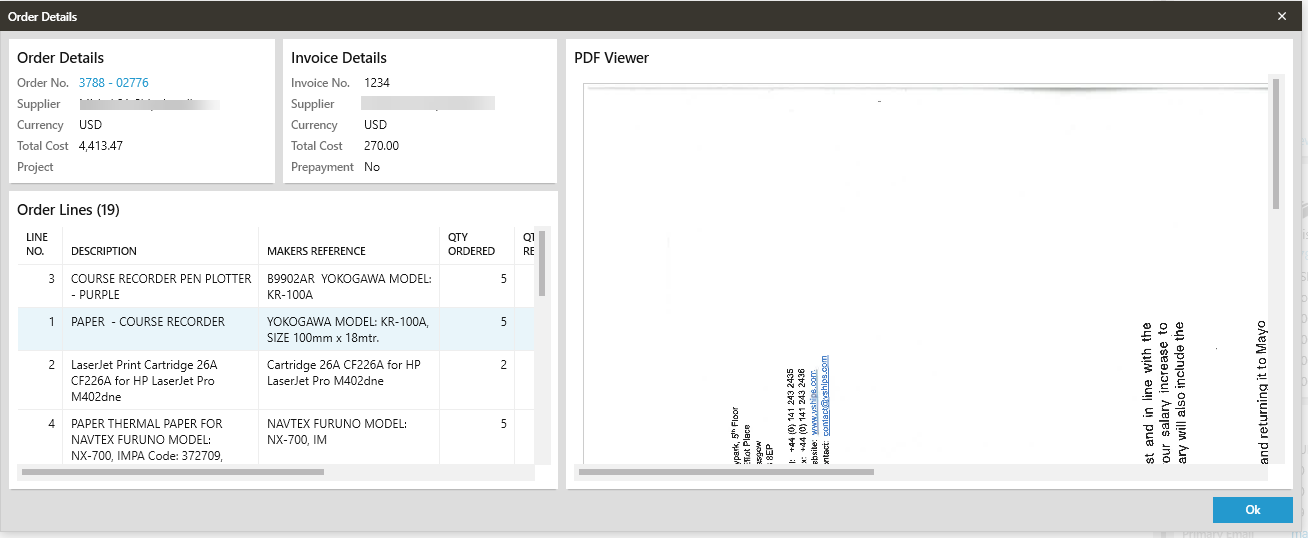
All of the invoice comparator reports include the invoice number, and both the PO supplier and invoicing supplier.
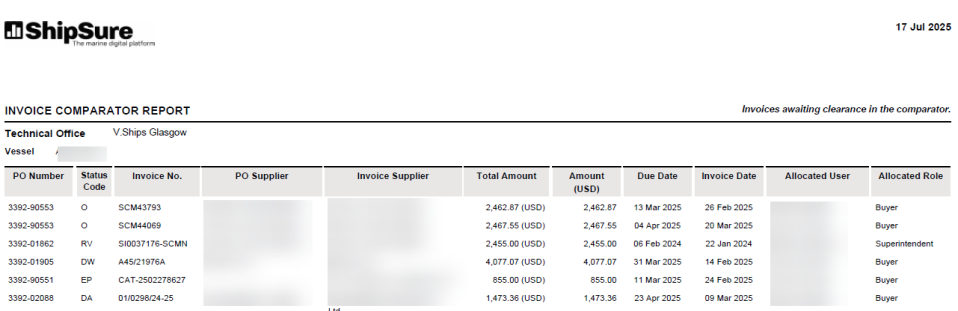
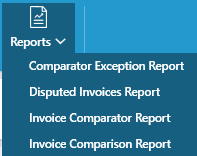
The Refresh function will reload any new invoices and update the grid with any changes that have been made.
Users, with security rights, can edit the invoice details in the comparator (and status 10 in the PO screen)
Users cannot change the total amount of the invoice but can change the allocation of the amounts e.g. goods and freight split
Highlight the invoice to be edited and click on the  icon
icon
The Edit Comparator Invoice grid will open and allow the user to update the required details
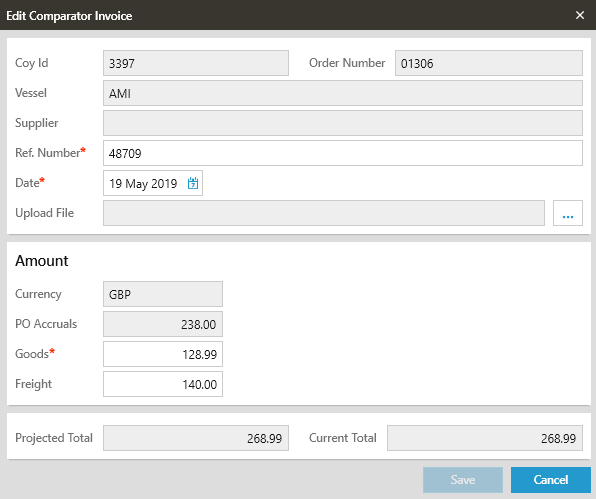
Click on the  button when complete.