Creating and Managing Freight Orders
| Audience: | Purchasing Department |
| Last Reviewed: | 27 January 2026 |
| Introduction: | This topic explains how to use freight orders to arrange deliveries of orders to agents, warehouses and vessels. |

When the order has arrived at a warehouse, it is ready to be delivered - usually to an agent who will deliver it on-board the vessel.
Only order with a status of SW can be delivered. Orders with a status of DW are shown for information purposes only.
This functionality if not available for the Fleet Managers & Superintendents

To create a freight order:
- At the top-left of the Purchasing screen, click the [Add] button, then select [Freight Order]. (This can also be done by creating a freight order from the Position List).
- Type or search for the name of the vessel the goods have to be delivered to. (If a freight order was created from the position list, this will already be completed).
- A list of warehouses which have orders for the vessel will be displayed. The number of orders with the status SW and DW at each warehouse is also displayed.
- Click any warehouse to view all its SW orders with either its delivery date or expected delivery date.
- Click the
 icon beside the warehouse name for contact information.
 - Click any order number to open its details view.
- Click the
-
Tick the box beside each order to be delivered or tick the box beside PO Status to deliver all the warehouse's orders, then click [Next].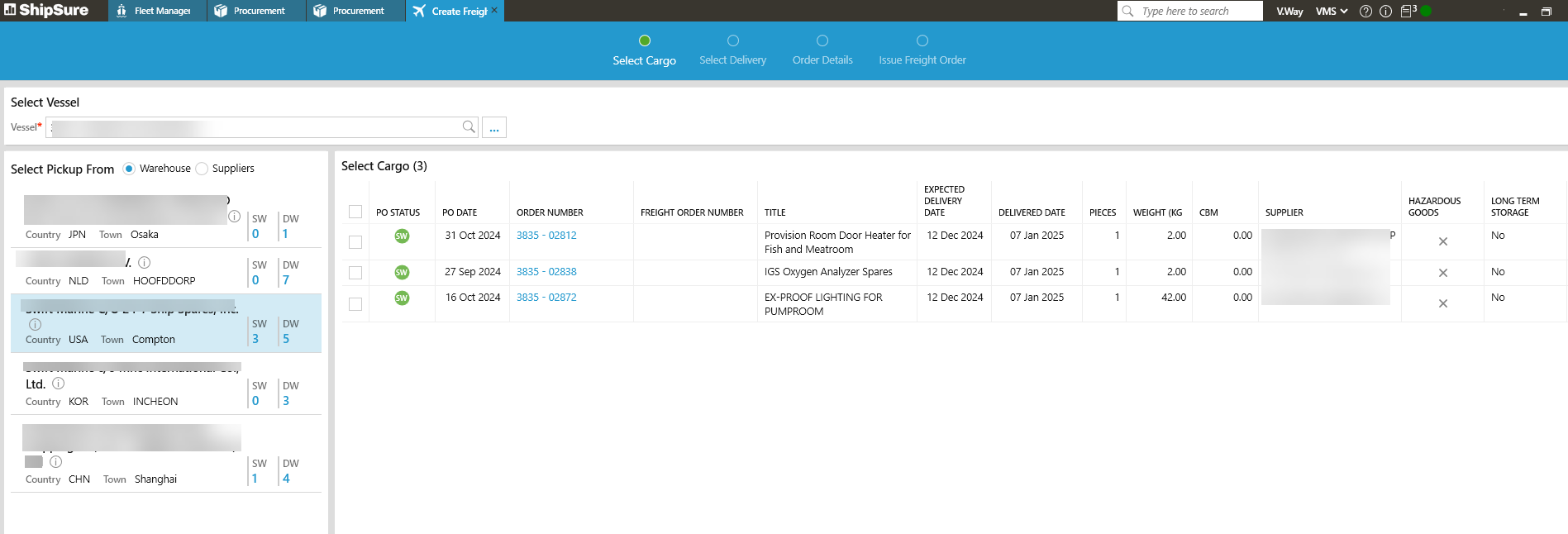
- On the "Select Delivery" page, select one of the following from the Select Company drop-down:
- Agent / Warehouse: Enter a delivery date, start typing the name of the agent / warehouse, then select it from the list, then click [Next].
- Position List: Enter a delivery date and select a delivery port from the list on the left. The port will expand to show all available agents at the port. Select an agent, then click [Next].
- A warning will be displayed if the delivery date occurs after the vessel's departure date from the port.
- On the "Order Details" page, enter the following information:
- Company: Start typing the name of the carrier company, then select it from the drop-down list. The company's contact details will appear in the area below.
- Freight Accrual: Enter the cost and select a currency from the drop-down list.
- Order Title / Freight Code: These will be completed automatically although can be changed if required.
- Note: Enter any relevant information about the delivery, then click [Next].
- The "Order Details" page provides a summary of the all the information you entered. Order details can still change at this point, or use the [Back] button to change the delivery information if required.
- When the [Finish] option is selected, choose to either email the supplier or print off the details. If email is selected, specify any additional email address(s) that the order is to be sent to. Additional check boxes allow the order to be sent to the agent, and to include the order notes in the email / printout.
In the "Stage" section at the top of the Purchasing screen, click [FO] to view all freight orders. For information on filtering the list of freight orders, see the Purchasing Screen topic.
Within the [Summary] tab, to change the order details or costs by clicking the  icon.
icon.
Within the [Freight Details] tab, users can add / edit / remove details relative to the order being delivered.
To add new details:
- Click the [Add] button.
- The Master / House AWBs, transport mode must be selected from the drop down list and enter the weight, number of pieces, total CMB and any other notes.
- If "Air" transport mode is selected, select the [Flight] details tab, and enter the flight number, "from / to" airports and dates & times of the flight. Search Airports by codes, name - or click [...], by country.
- Click [Save] to add the freight details to the list.
- If freight details are 'Transport by Air' freight details can also be communicated to the agent and superintendent. To do this, select the freight details, then click [Issue Flight Itinerary].
-
The recipients of the flight details will be displayed.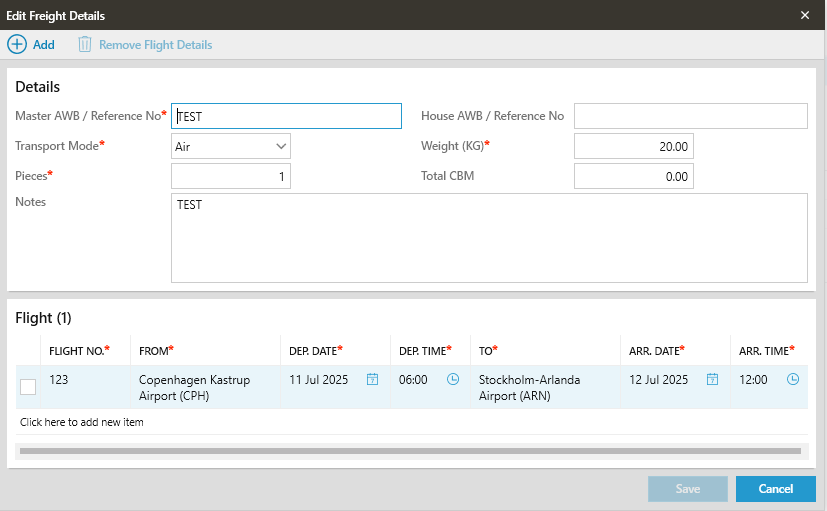
- In the Communication section, either issue the flight details by email (and add additional recipients to the Cc: field), or "Print" the details.
- Click [Issue] to finish.
Within any freight order, click the [Cargo] tab. The screen will display all purchase orders currently assigned to the freight order. At the bottom of the screen, the total weight, number of pieces, CBM and base amount is shown.
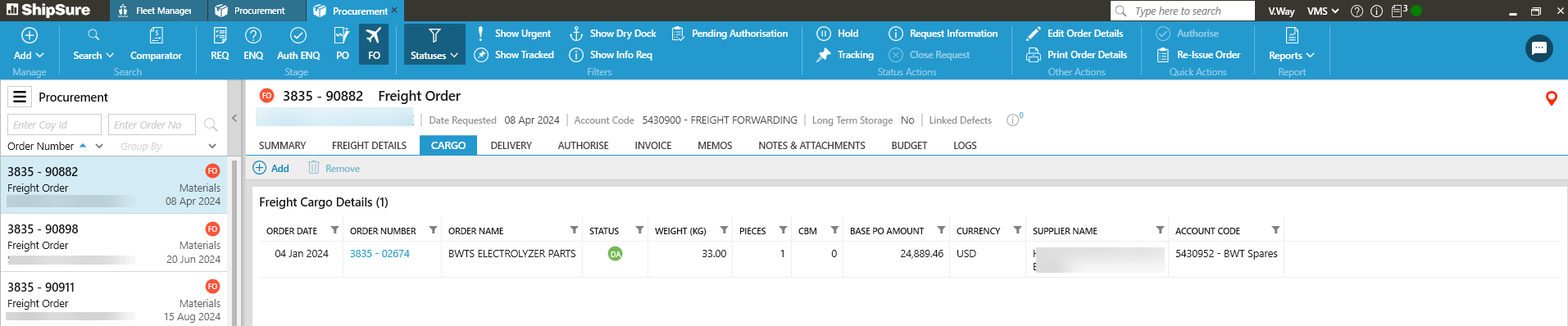
To add another purchase order to the freight order, click [Add], then select the order from the area on the right.
- Only orders for the selected vessel that are stored at the same warehouse (status code: SW) will be available for selection.
To remove any order, select it then click [Remove], then [Yes] to confirm.