Functions, Filters and Tabs
| Audience: | All users |
| Last Reviewed: | 27 January 2026 |
| Introduction: | How to access and use the Purchasing Screen, which shows all the information relating to orders |

ShipSure has a wealth of information relating to all areas of a Purchase Order, including its suppliers, delivery details, budgets and invoices.
This section explains how to use the search functions, the filters, the quick links and tabs to view the information you need after selecting a vessel.

How to access the Purchasing Screen
All users can access the Purchasing Screen from anywhere within ShipSure by clicking the ShipSure logo at the top-left of the screen then select [Marine Purchasing].
When the area has been selected, a Vessel or Fleet can be selected.
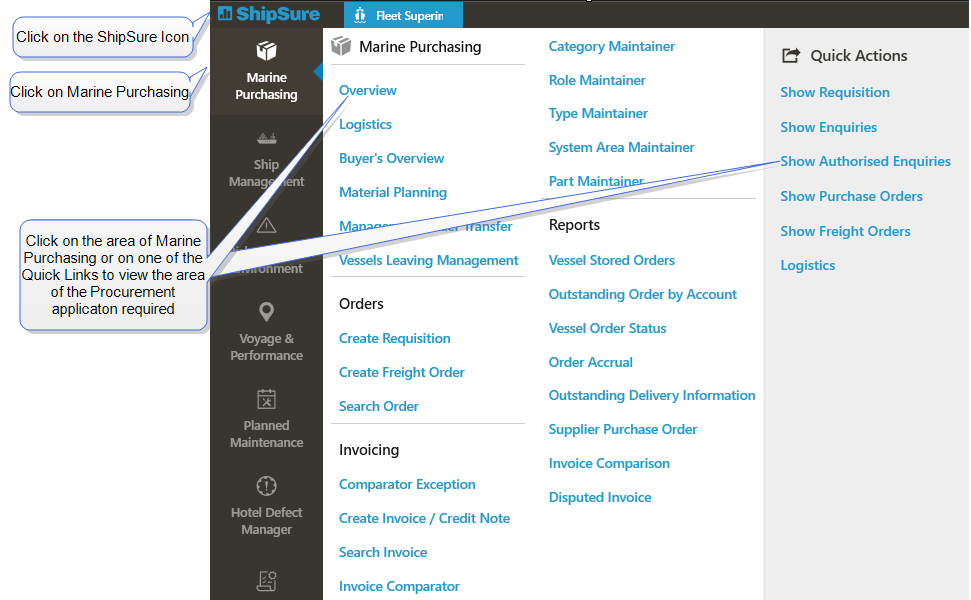
The type of orders they select (e.g. requisitions or purchase orders) will be the orders that are displayed when the screen opens.
The Quick Links & Actions allow the user to easily access different areas of the Marine Purchasing with one or two clicks:
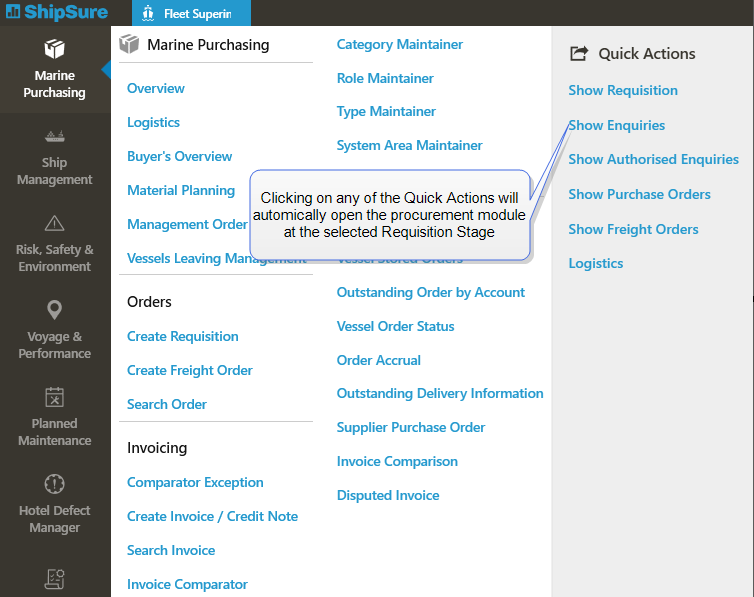
The functional options available to the user will change depending on which stage is selected and the user's profile.
For example:
- only a Superintendent will have user access to Authorise Orders Supt.
- only a Buyer will have access to Issue RFQ's and Orders.
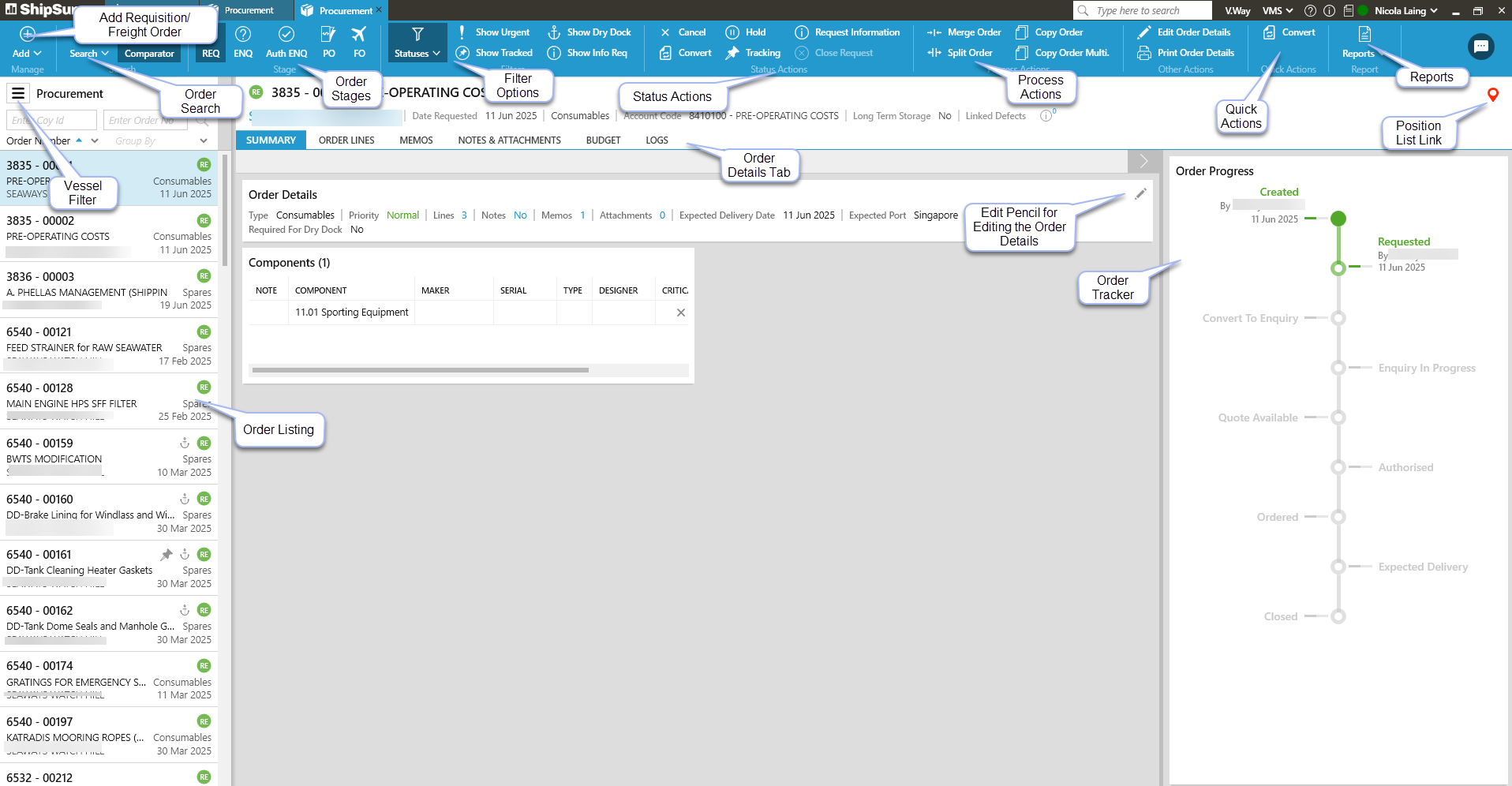
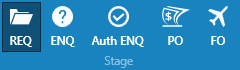
The Stages area contains the primary categories for orders.
Each order begins as a
-
Requisition, then progresses through to the
-
Enquiry, stage then progresses through to the
-
Authorised Enquiry, stage to become a
-
Purchase Order where the order can be placed with a supplier
-
Freight Orders are created and assigned to Purchase Prders.
Select any stage to view its orders in the left pane.
-
Click the Filter Vessel
 icon to select which ships' orders to be viewed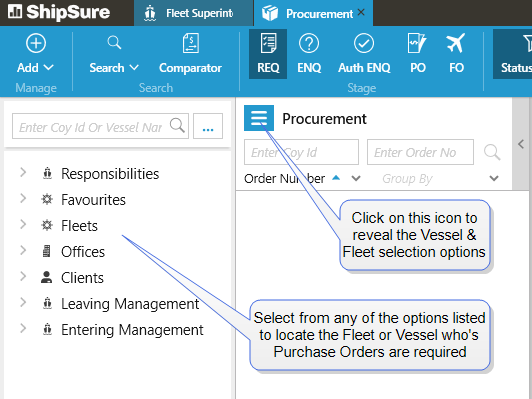
-
View all ships belonging to an office, group or client - or one specific ship
-
View all orders for vessels with a particular status, e.g. Leaving or Entering Management
-
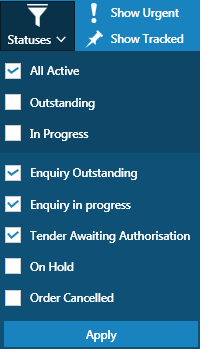
By default, the drop-down filter will show all active orders.
-
To change the view, Tick or Untick the box next to any order status (e.g. enquiry outstanding or enquiry in progress) to show / hide all orders with that status.
- The order statuses will vary, depending on which stage being viewed.
- Click [Apply] to view the orders statuses selected.
-
-
The [Show Urgent] / [Show Tracked] filters allow further filtering of orders to show only urgent and / or tracked orders.
-
If there are no Urgent or Tracked items the page will show 'No Items Found'
-
To remove the [Show Urgent] / [Show Tracked] filters click on them again and the filter will be removed
-
-
Show Information Requested filter will display only those invoices in the Order Listing where Information has been requested from the vessel.
-
These orders can be identified by the Information
 icon next to the Status icon
-
-
The current status code is displayed beside each order.
-
Hover the mouse over any status code for more information
-
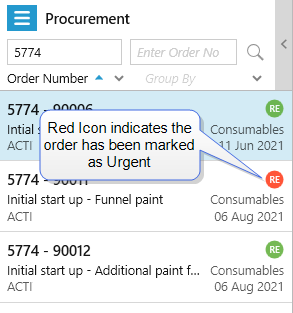
Red icons denote urgent orders
-
Green icons denote non-urgent orders.
-
-
The left pane displays all orders which match the Stage and selected Filters
-
Each order will display the selected vessel's accounting number (Coy ID), order number and title, vessel name, status code and type of order i.e. materials or services. Select any order in the list to view its information in Order Details
-
To find a specific order in the list, enter its 4 digit COY ID in the left text box, and / or its 5 digit order number (beginning with a 0 or 9), then press [Enter]. .
For larger lists, use the Sort By / Group By to filter the orders:
- Sorting orders: Orders can be sorted by their order number (numerically), title or vessel name (alphabetically) or order date (chronologically). To reverse the order, select the option again.
- Grouping orders: Orders can be grouped by vessel name, warehouse (except requisitions), orders status, type (i.e. materials or services) or priority (i.e. normal or urgent).
- Sort and Group can be applied to the list, i.e. the orders will be sorted within each group.
-
Each Order Tab i.e. Summary, Order Lines, Notes etc. contains information about the selected order.
-
The Tabs on display are relevant to the selected Stage of the order and the user's profile.
-
When using a smaller monitor, click on [More] to view all the tabs available from a dropdown list.
-
-
At the top-right of the screen the current / next location of the vessel is displayed,
-
To view the location in the Position List click on the location name.
-
The Position List will open in a new Tab.
-
Requisition Stage Landing Page & Tabs
-
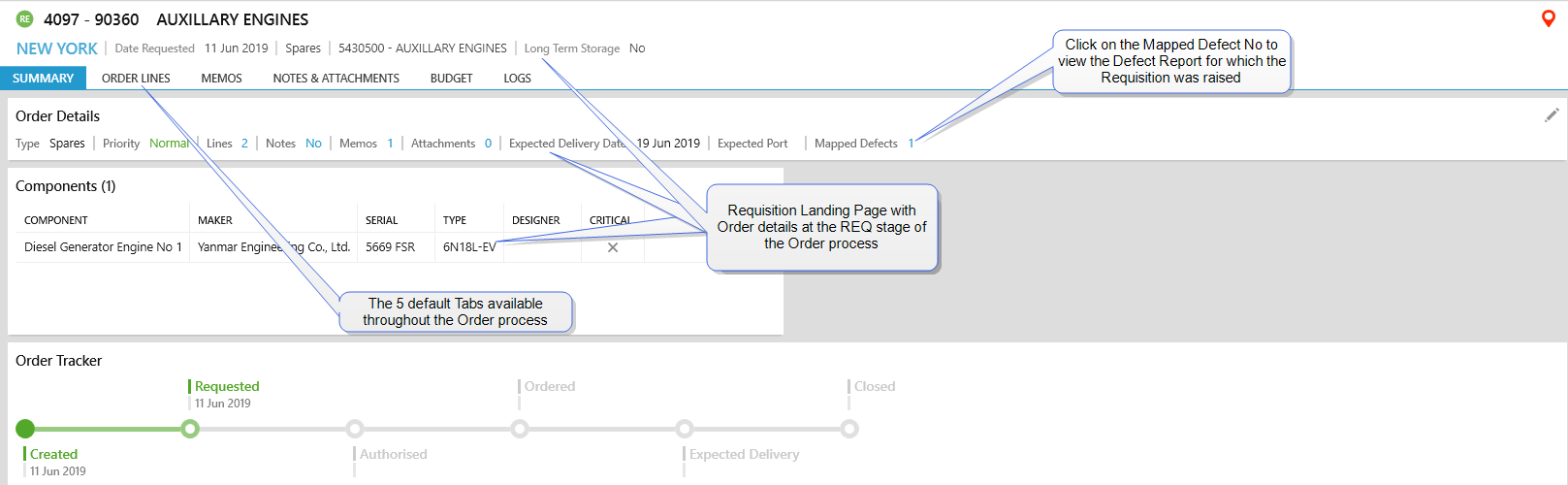
At the Requisition Stage Landing Page and Tabs available are as below. These Tabs appear at all stages of the order process
Default Tabs - Summary, Order Lines, Memos, Notes & Attachments, Budget and Logs
Enquiry Stage Landing Page & Tabs
-
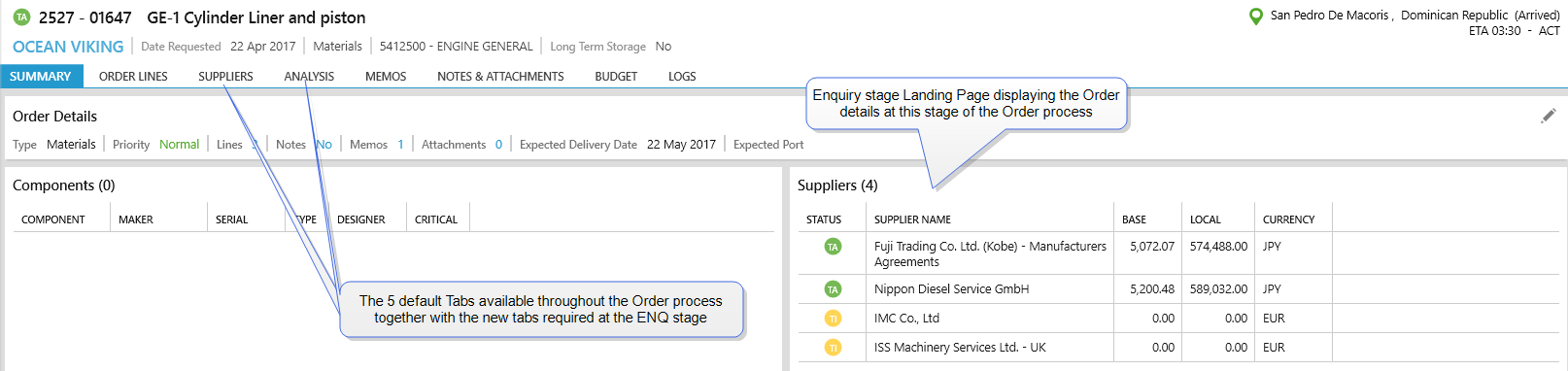
At the Enquiry Stage Landing Page and Tabs available are as below. The default Tabs appear here along with the new tabs required at this stage of the order process
-
New Tabs - Suppliers and Analysis
Authorised Enquiry Landing Page & Tabs
-
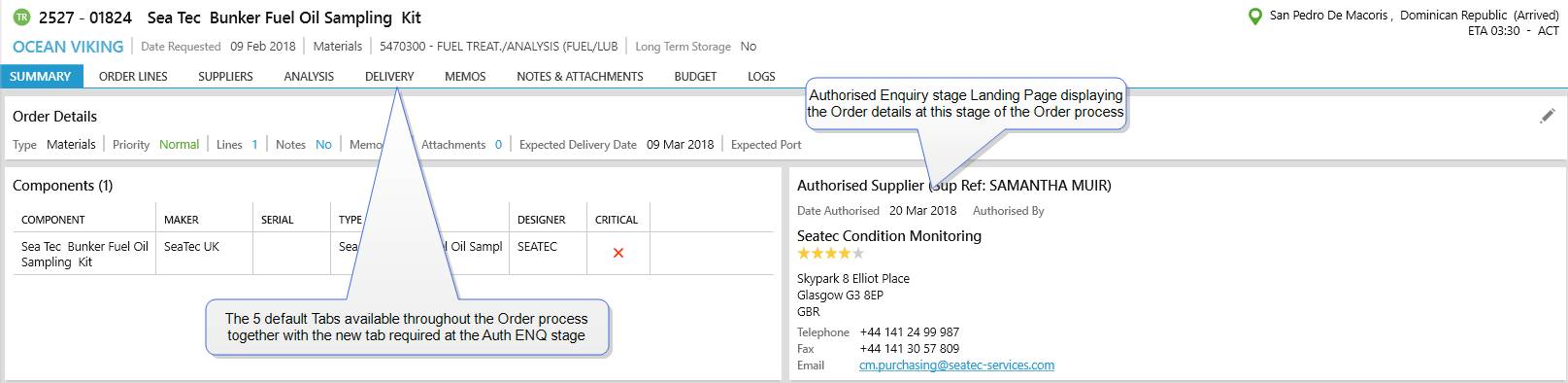
At the Authorised Enquiry Stage the Tabs available are as below. The default Tabs appear here along with the new tabs required at this stage of the order process
-
New Tab - Delivery
PO Landing Page & Tabs
-
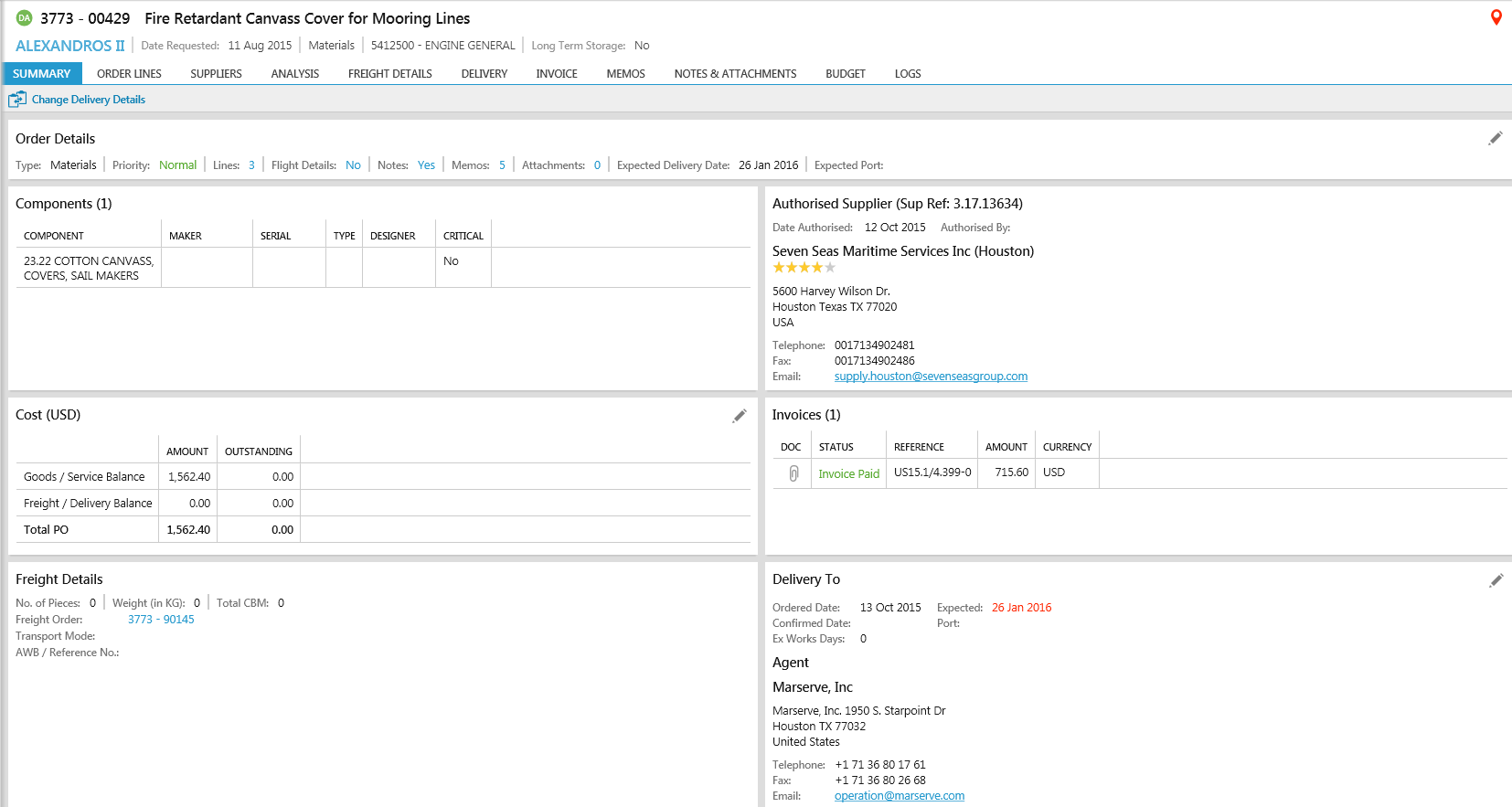
At the Purchase Order Stage the Tabs available are as below. The default Tabs appear here along with the new tabs required at this stage of the order process
-
New Tabs - Freight Details and Invoice

FO Landing Page & Tabs
-
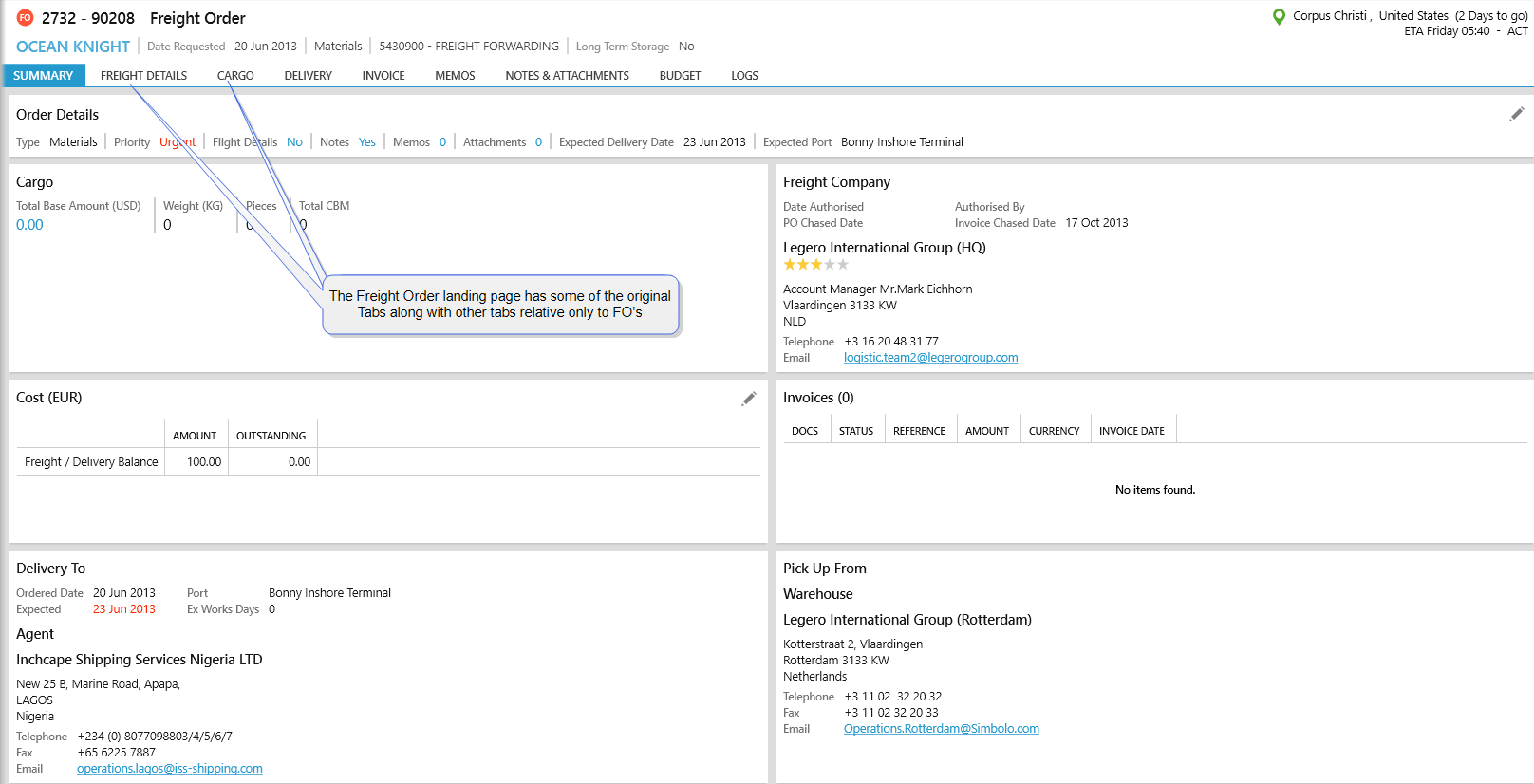
At the Freight Order Stage the Tabs available are as below.
-
The default Tabs appear here along with the new tabs required at this stage of the order process
-
Each Summary screen will vary, depending on the selected order's stage. For example, requisitions will only show information about the ordered component, whereas purchase orders will show component, supplier, cost, invoice and delivery information
-
However, each summary tab will display the order type, priority, number of order lines, and notes / memos and attachments status for every order
-
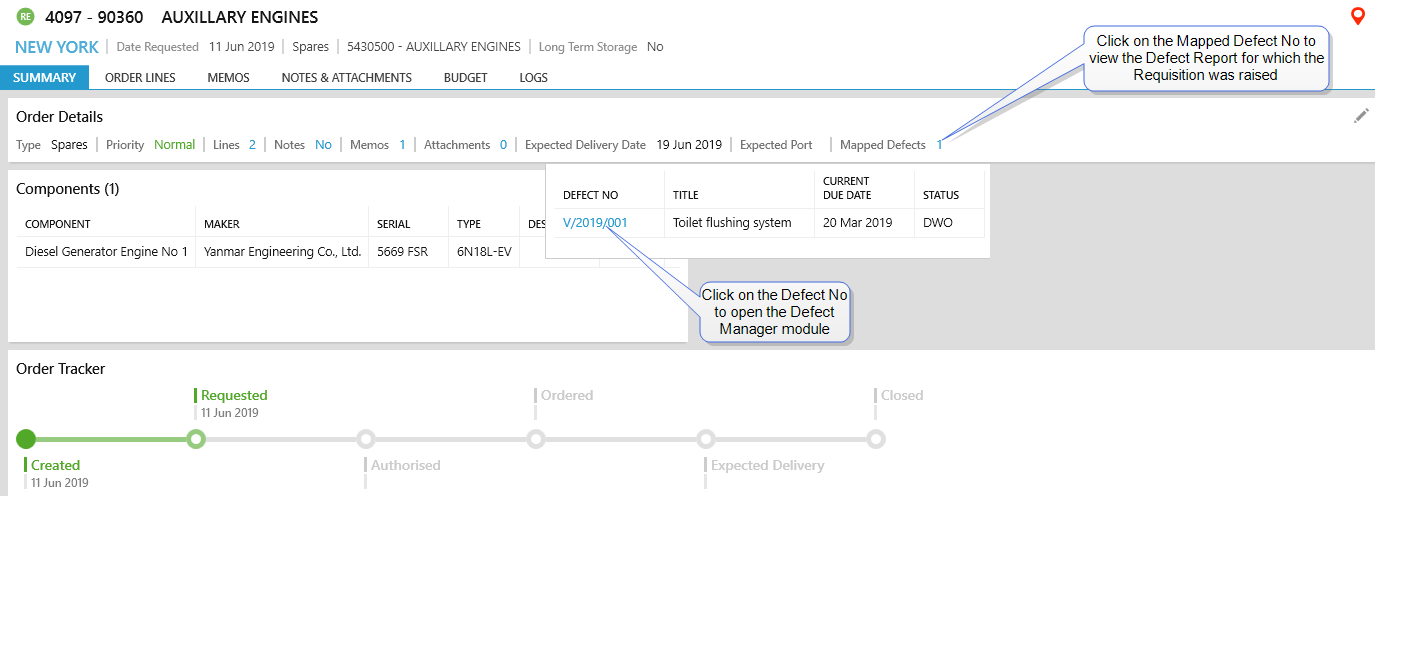
The PO Summary screen also displays a Link to the Defect manager when a requisition has been raised in the Defect Manager module to fix the reported Defect
-
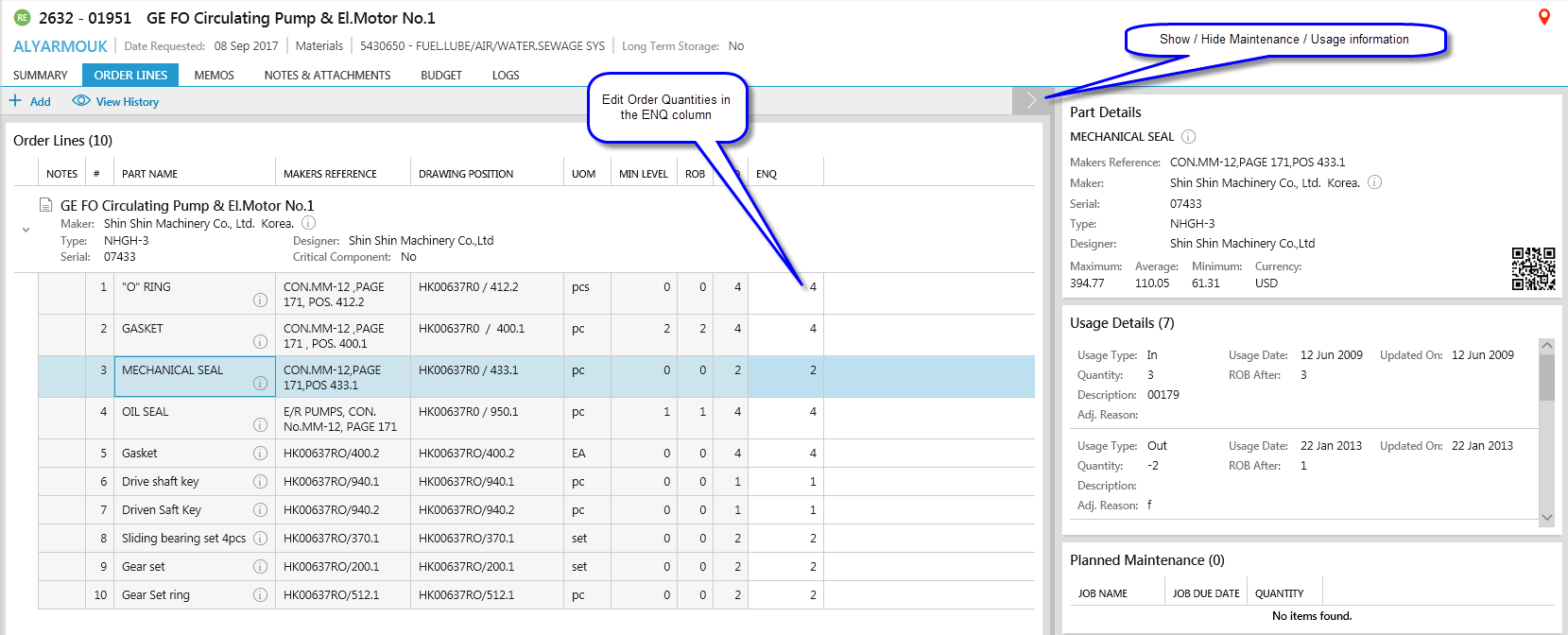
This screen displays the order lines selected for purchasing against the selected Component when the requisition was created and includes the selected Item's Barcode, details of the minimum required levels, ROB, REQ, ENQ, usage and planned maintenance (where this information is known). Some of this information can change depending on the Stage selected.
-
The order history for each order line item can be viewed by highlighting the order line and clicking on the [View History] icon. If there is no history for the selected line item the [View History] icon will be disabled.
-
By clicking the
 show / hide details icon, this will display usage information on the selected line item (i.e. when it was brought in and when it was used), and any information on its maintenance. You can also view the lowest, highest and average price it has been sold for, again this depends on the Stage selected.
 -
If purchase orders is selected, the columns will change to show the number ordered / received for each line, as well as "incorrect item" and "poor quality" statuses.
-
The maximum, minimum and average cost per unit is shown at the top. All prices are converted to the vessel's base currency.
-
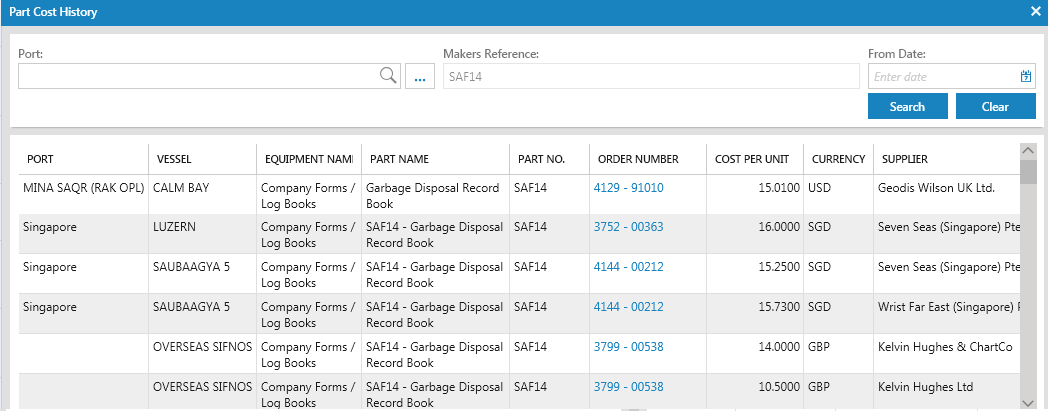
ShipSure keeps track of all previous order costs. Knowing the past purchase history of order lines can help when managing orders. To view this information, select an order line, then click [View History].
-
By default, all previous orders for the item from vessels in the same technical office will be displayed, including the order number. Click to view the order, supplier, cost per unit and currency. To filter the list:
-
Enter the port where the item was delivered and / or;
-
Enter a date into the "From Date" field. Only orders delivered from this date will be displayed.
-
-
Click [Search] or press the [Enter] key to apply the filter.
-
If the order is still at the Requisition stage, it is still possible to make changes to it.
-
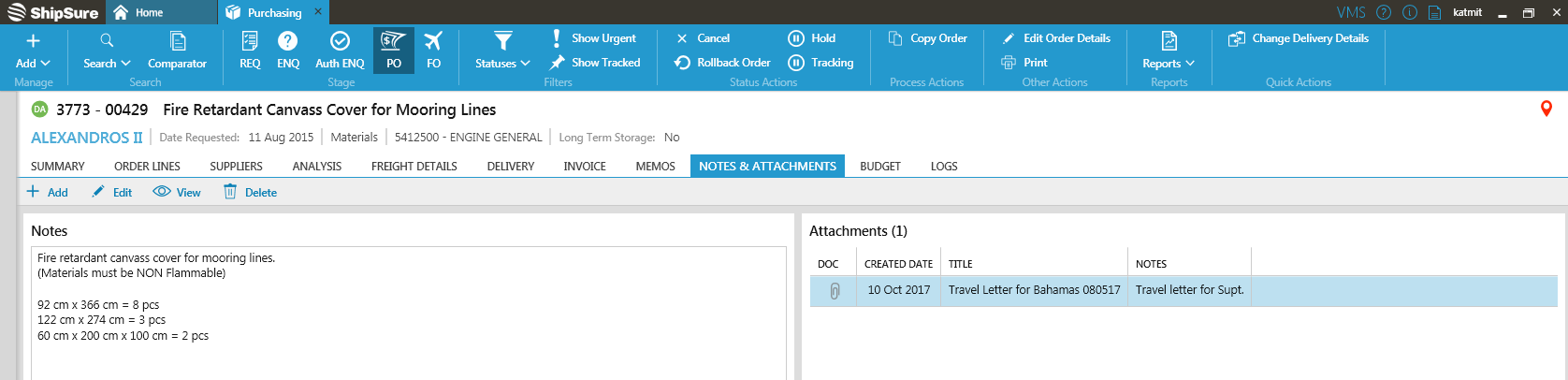
The [Notes & Attachments] tab gives a view or allows the addition of any general notes and attachments about the order.
-
Notes & Attachments can be added to an order at any stage by either the vessel or the office.
-
When an attachment is made in all modules it is necessary to choose the appropriate category so that it can be classified easily.
-
For example : In orders, it is a requirement of the owner that the Master sends a signed copy of the delivery note in order that invoices can be paid based on it
NOTES
-
To add a note, type into the text area, then click [Save].
ATTACHMENTS
-
Any type of attachment can be added to a Purchase order, including PDFs, Word Documents and images.
-
To view any attachment, open the order details, click the [Notes & Attachments] tab, highlight the attachment then click [View].
-
To add attachments:
-
Within the order details, click the [Notes & Attachments] tab.
-
Click on the Add icon.
-
Click [Browse] to locate the file (.pdf, .doc, .jpg etc.).
-
Click [Open] to add the file.
-
The title will default to the name of the attachment, but this can be changed and add any further notes if required.
-
Click [Save]. The attachment will appear in the list.
-
To remove and attachment
- Highlight the attachment in the list
- Click on the [Delete] Icon
- Then [Yes] to confirm.
- The document will be removed from the list
-
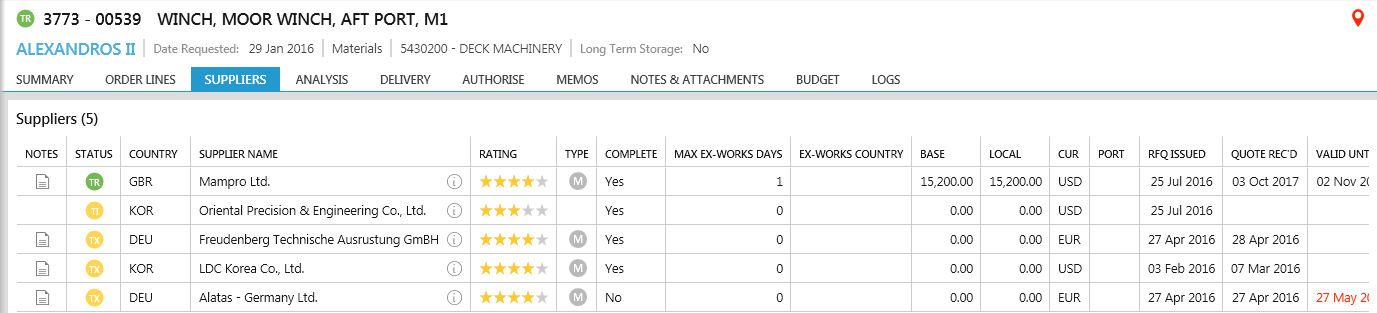
The Suppliers tab displays all suppliers that have been attached to an order, including their status (TA, TR, TX or TH or TI), preferred currency, local port, quotes (if supplied)and various other information about the order.
-
Please note that the [Suppliers] tab will not normally appear in requisitions, unless a contract supplier has been assigned to the order's account code.
-
Click the
icon beside any supplier to view their contact details. -
An "M" in the Type column denotes a contract / MARCAS supplier.
-
For purchase orders, a green TA status will be shown beside the supplier selected to provide the order.
-
For more information on managing the suppliers attached to the order, see Selecting Suppliers.
-
-
The Analysis tab allows users to compare the quotes from multiple suppliers. See Supplier Quote Analysis .
-
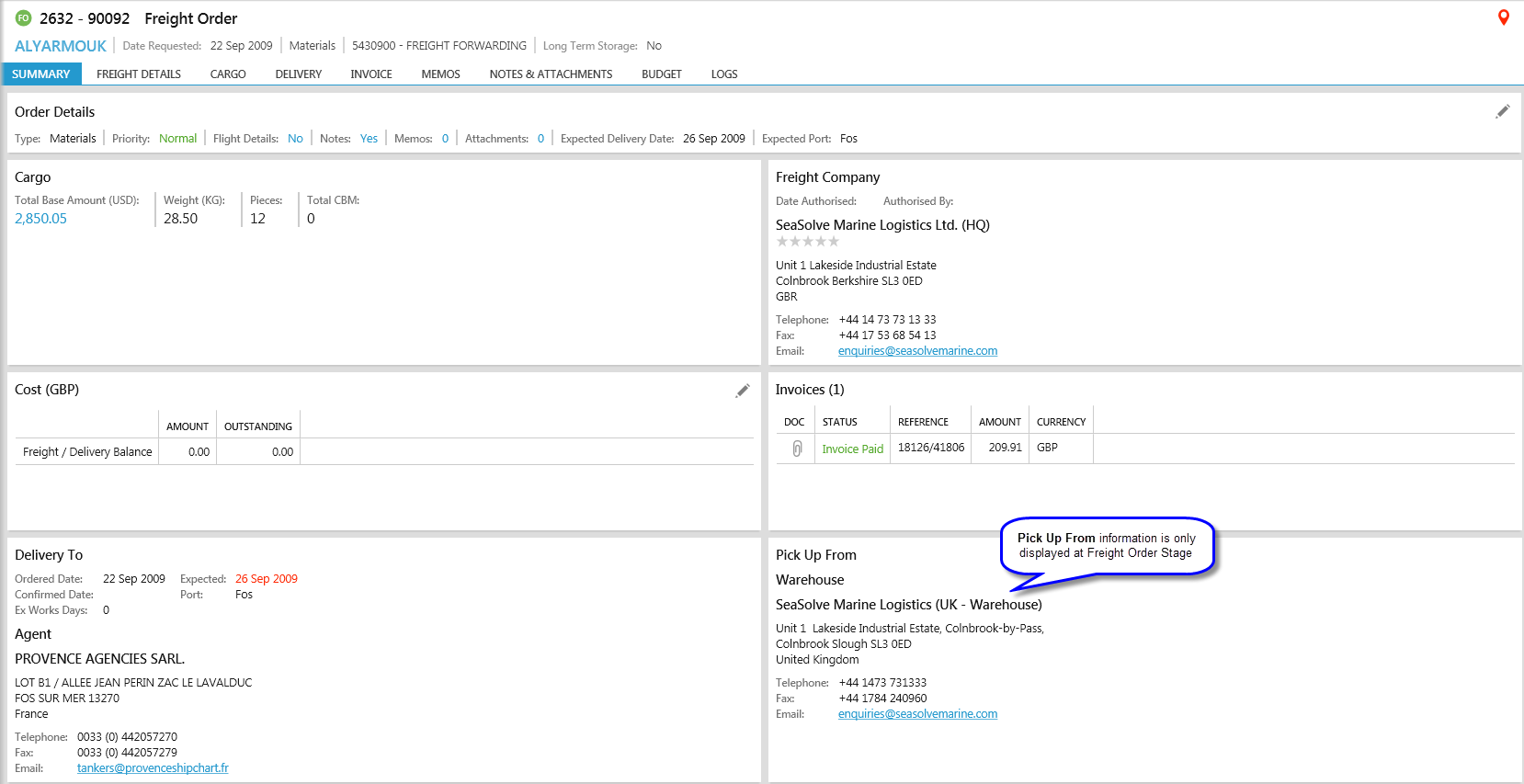
To view delivery information relating to an order click the [Delivery] tab in any purchase or freight order.
-
The different sections of the [Delivery] tab display information about the supplier, freight, quote, delivery address (agent, warehouse or supplier), delivery times and pick-up details.
-
Orders can also be issued from this screen. See Issuing Orders.
-
To find out more about changing delivery information, see Creating and Managing Freight Orders.
-
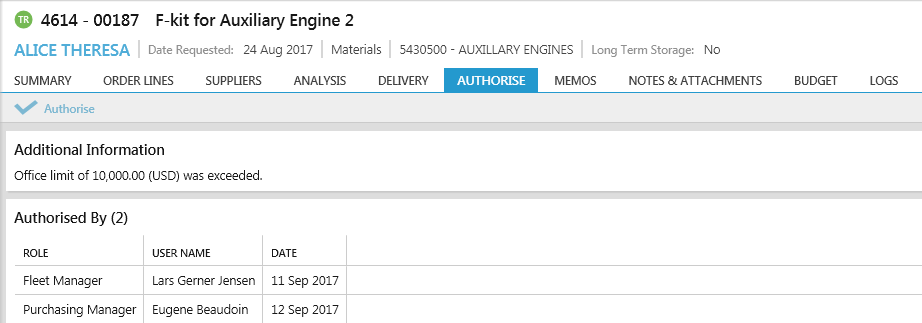
This section gives a view of any previous authorisations performed on the order. Depending on the user's permissions orders can also be authorised or issued from here.
-
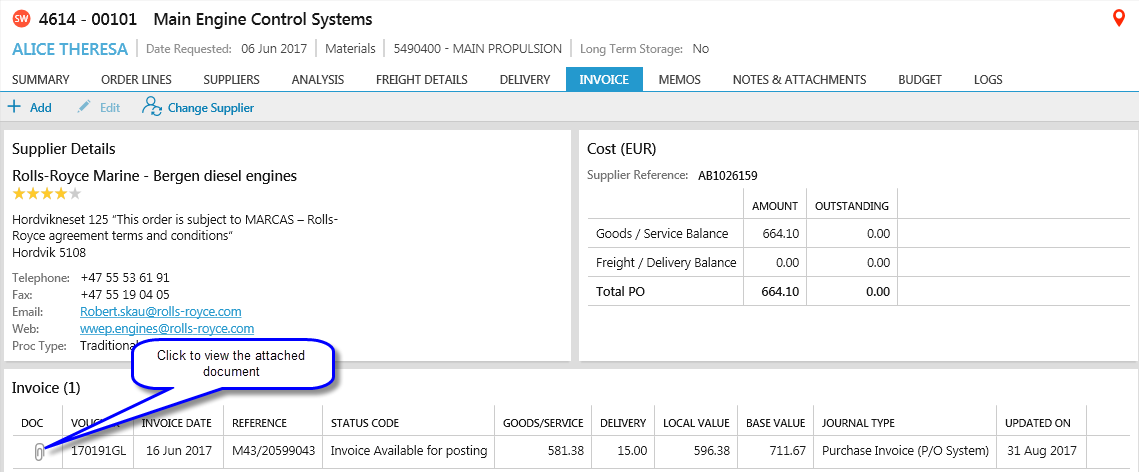
Obtain a view all invoices relating to an order by clicking the [Invoice] tab in any purchase or freight order.
-
The different sections of the [Invoice] tab show the supplier details and the total amounts for goods / services and delivery.
-
Invoice(s) information is displayed below. Click on the [View] button on the invoice line to view the attached invoice
-
The tax fields shown will vary, depending on the vessel.
-
After an order has been invoiced, it cannot be amended.
-
Invoices may be added to the system automatically if the supplier uses the web portal / MTML. Otherwise, the invoices require to be added manually.
-
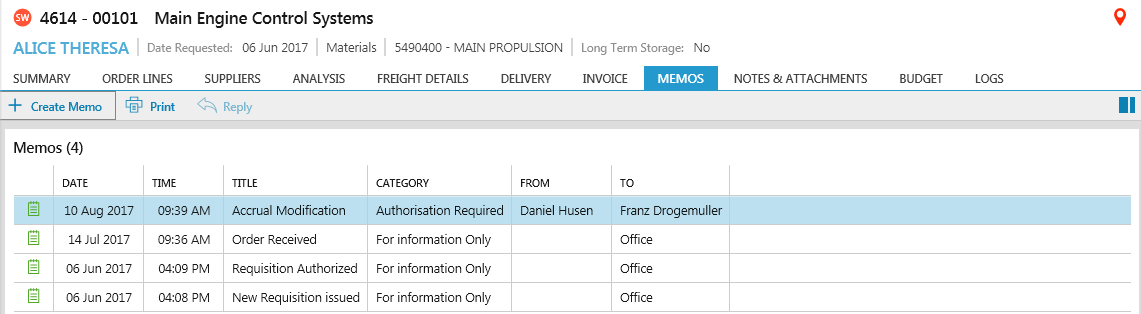
The Memo sections allows users to communicate information about the order to all interested parties. All past communications can be viewed in this tab.
-
By selecting a memo its details can be viewed in the right-hand pane. The Memo can be printed by selecting the [Print] icon.
 Note memos can NOT be deleted.
- To create a new memo, click the [Create Memo] button. To reply to an existing memo, select it from the list, then click [Reply].
- Select the address of the person(s) the memo is to be sent to (e.g. the vessel, purchasing team or technical controller).
- From the category list, choose the type of information required (e.g. authorisation or delivery).
- Enter a title and message for the recipient(s).
- Choose how to contact the recipient (e.g. by email). If "none" is selected, no message will be sent but the information will still be available from the [Memos] tab of the order.
- If "email" is selected additional recipients can be added into the "CC email" field. Each email addresses must be separated by a;
- If any notes have been added to the order, tick the box to include them.
- Click [Send]. The memo will be added to the list and will be viewable by all users.
-
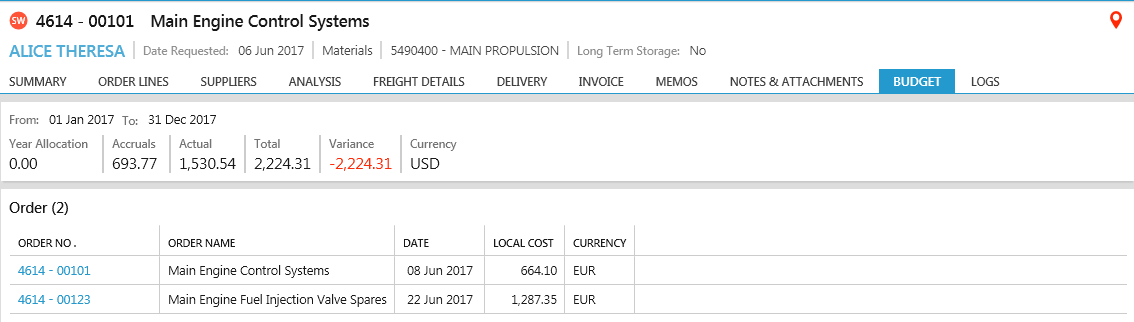
The budget information can be viewed by clicking the [Budgets] tab of any order selected in the Purchasing screen.
-
The upper-part of the budget section will display the total allocation for the year, as well as the actual spend to date (taken from the general ledger) and any outstanding accruals. These figures are used to calculate the total and remaining spends.
-
In the section below, all the purchases made against the account code for the current year can be viewed. Click any order number to view its details.
-
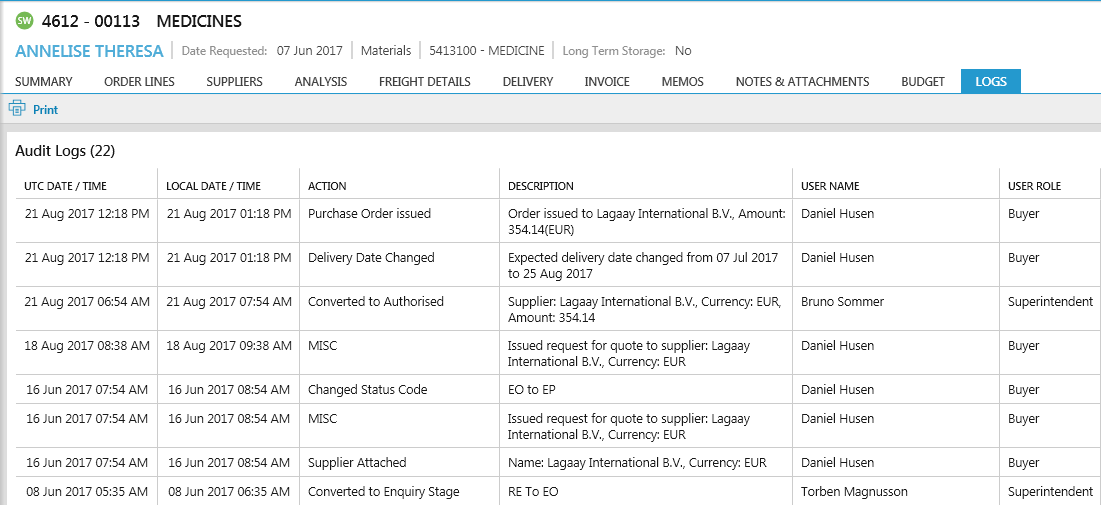
To view all the key changes made to an order from its initial creation, click the [Logs] tab (for smaller monitors, click [More] to view the tabs that don't fit on the screen).
-
All key events (such as creating the requisition, progressing the order or changing information) will be displayed in chronological order. By clicking on one of the date / time headings this will reverse the order. By clicking on another column headings to group information by its values, e.g. clicking "user role" will group all the buyer actions together.
-
For each event in the audit trail, the date / time of the action, the type of action performed, and the name and role of the person who performed it will be displayed. The list can be [Printed] if required.
-
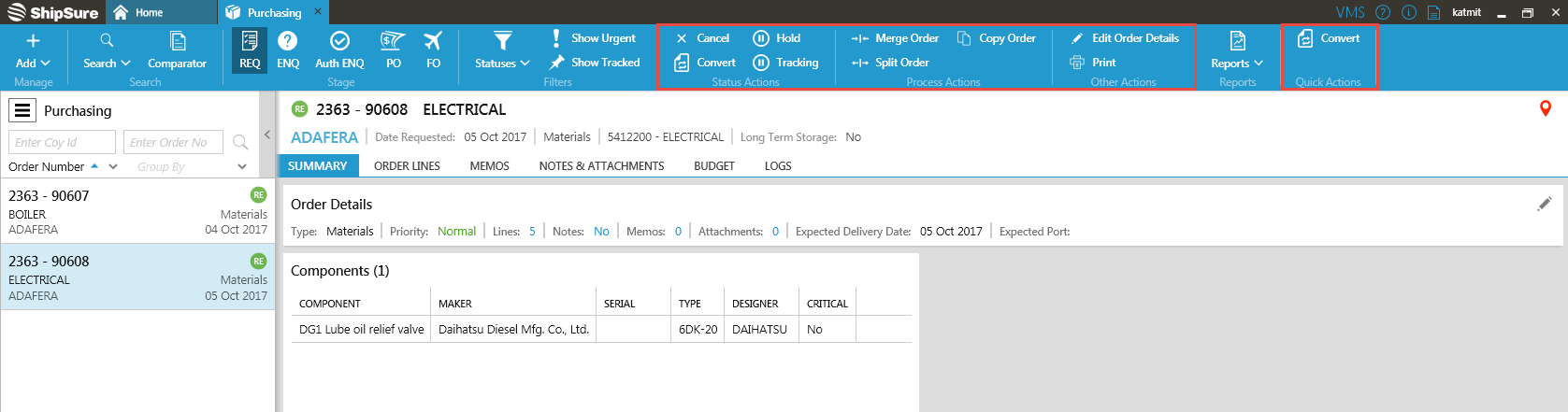
The icons at the top of the Purchasing screen perform different actions on orders. Orders are split into the following sections depending on the selected stage of the order:
-
Status Actions: Used to progress / roll-back orders, or to track, cancel or put orders on hold, Request Information and Close Requests.
- Process Actions: Used to copy any order, or to split / merge requisitions.
- Other Actions: Used to edit basic order information, or to print order details.
- Quick Actions: These will contain the most-commonly used actions and will vary depending on the order's stage.
-
First, select an order from the list on the left, then select an icon. These same actions can be selected by right-clicking any order in the list to view those available at the selected stage.
Actions available are:
-
Authorise: Authorised Enquiries only. See Authorising.
-
Cancel: Orders with any stage can be cancelled. See Cancelling Orders.
-
Convert: Used to convert a requisition to an enquiry.
-
Copy: All orders (except freight orders) can be copied to make a new requisition.
-
Only the long term and tracking status in authorised enquiries can be changed
-
Only the tracking status in purchase orders can be changed.
-
Title, Account code, Priority (Status Field) and long term storage status
-
Tracking allows a user to Track important orders. To view all tracked orders click on the [Tracked Orders] at the top of the screen
-
-
Edit: Basic information about the order can be edited.
-
Hold: Any order can be put "on hold" and resumed at a later date:
-
To put an order on hold, select it from the list on the left, then click [Hold], then [Yes] to confirm.
-
In the Purchasing screen, select the order from the list.
-
Click the [Hold] button at the top of the screen, then click [Yes] to confirm.
-
-
Use the order filter to view all orders on hold in any stage.
-
To resume an order that has been placed on hold:
-
Select the order on hold - it will have the icon
 on it
on it -
Click the [Hold] button at the top of the screen, then click [Yes] to confirm.
-
-
(Re)Issue Orders: For authorised enquiries and purchase orders. See Issuing Orders.
-
Merge: Multiple requisitions can be merged into a single requisition. See Merging Requisitions
-
Split: A single requisition / enquiry with multiple orders line can be split. See Splitting Requisitions.
-
Print: Any order can be printed.
-
Rollback: Purchase orders and authorised enquiries can be "rolled back" to the Enquiry stage. See Rolling back Orders
-
Track: Click this icon to track / untrack any order. Use the "Show Tracked" filter to only view tracked orders. See Filters above.
-
Request Information The office can 'Request addition Information' from the vessel relative to the order. The order is flagged by an Information
icon next to the Status icon. The vessel replies to the office with the information using the Memo function -
Close Request When the office has received the additional information from the vessel the order can be highlighted and the Close Request option used to remove the request for information