Reviewing and Converting Requisitions
| Audience: | All users |
| Last Reviewed: | 27 January 2026 |
| Introduction: | This topic explains how to review and make changes to a requisition. |

After the initial requisition has been created, it can be reviewed, its key information changed before converting to an enquiry and it can also be cancelled if required.
Suppliers cannot be assigned to a requisition before it has been converted to an enquiry. See Selecting Suppliers.
Using the Purchasing Screen topic give details on how to edit key information of an order, i.e. putting an order on-hold / resume an order, or add / view attachments.

Whilst an order is at the requisition stage, the order line amounts can be changed and line items / components added or removed.
 - Additional components and lines items can also be added after the initial requisition has been raised when editing the requisition.
Change order line amounts
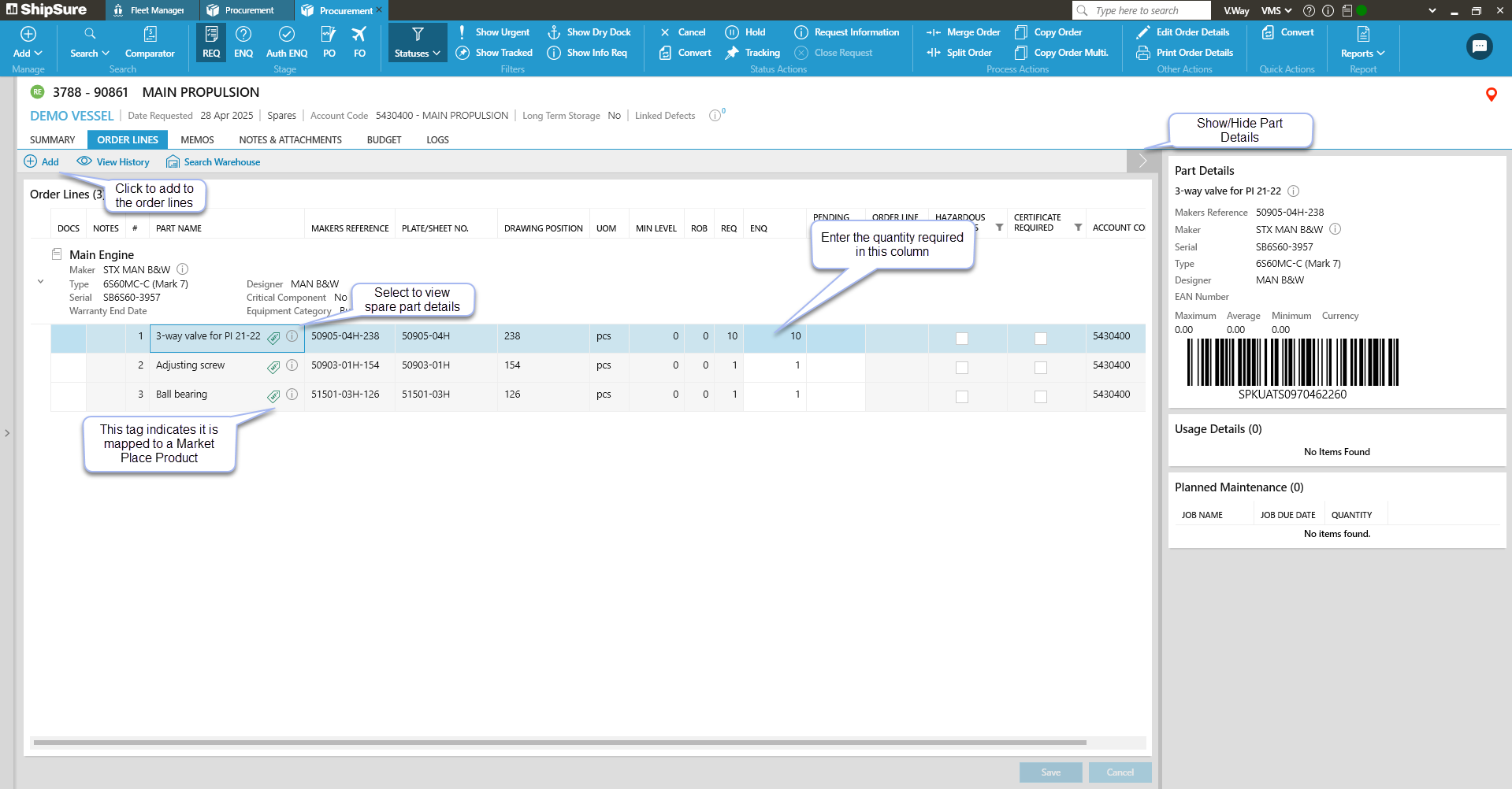
Change the order amount of line item(s) by selecting the [Order Lines] tab and changing the number in the ENQ column
Remember to click [Save] after making any changes.
Add additional components and line items
- From within the [Order Lines] tab click on the [Add] option to view the [Add Order Lines] grid.
- When searching, using a wildcard - % - in front of a search term will search all parts of the component / part name.
- Where additional Component(s) and associated parts, are to be added to the requisition, enter some text into the Component field and click [Search].
- Where additional Parts are to be added to an already selected Component enter some text into the Part name / Maker reference number fields and click [Search] and a list of parts related to the component will appear.
- Any existing parts for the selected component will automatically populate the Add Order Line grid when it opens.
- Tick the box(s) beside each Spare part(s) to be added, then click [Add to Order Lines] or Drag & Drop the selected spare parts onto the Order Lines grid.
- Enter the number required for each order line into the REQ column.
- Items can be removed from those selected by clicking the spare part by clicking [Remove].
- Click [Save] for the newly selected components / parts to be added to the other order lines on the requisition.
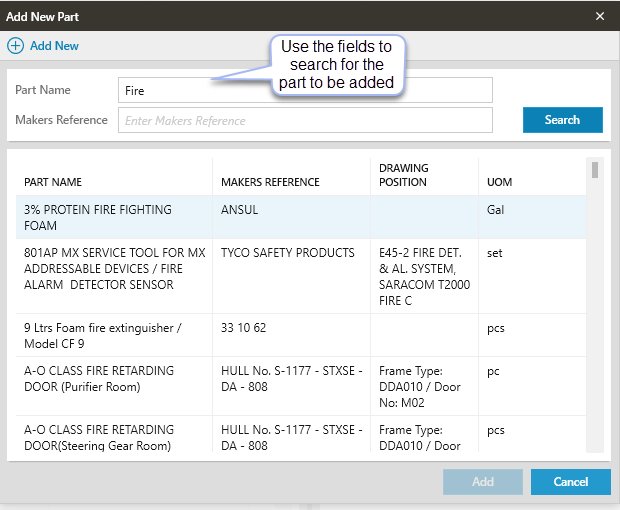
When adding to order lines, click the Add Part button to add a new part:
-
From this screen, it is possible to create a new part to be added for the system. Click the Add New button in the Add New Part window to begin the process.
Add a new part
-
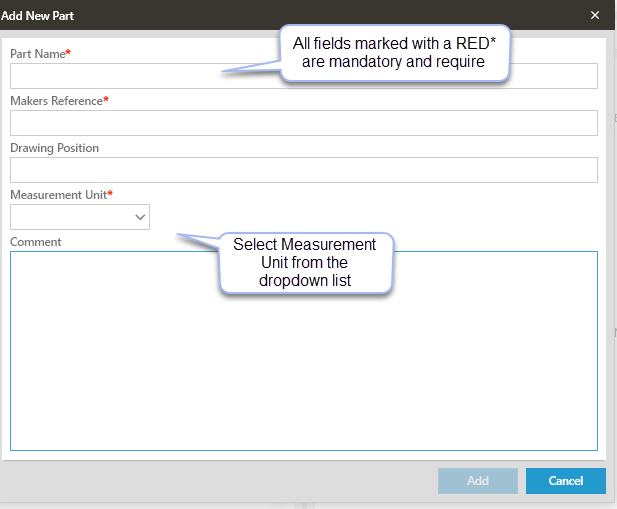
To add a new part to the system, the following details must be entered:
-
Part Name
-
Maker’s Reference
-
Drawing Position
-
Measurement Unit – this is selected from a dropdown menu
-
-
A comment can be added to the part, but this is not mandatory.
Select the requisition to be put on hold then Click the [Hold] button located in the Statuses Actions section at the top of the screen, or right-clicking the order in the order list, then select [Hold].
Repeat this action to remove the "on hold" status and resume the order.
If an order is no longer required, it can be cancelled.
- Cancelled orders can not be "un-cancelled", although they can be copied
Cancelled orders can be viewed by selecting the [Order Cancelled] option from the Statuses dropdown list.
The ship will be notified whenever one of their orders has been cancelled.
Once a requisition has been raised, a member of the technical team must review it. If OK to proceed, anyone in the purchasing or technical team can convert the requisition to an enquiry.
To do this:
- In the list of requisitions in the Purchasing screen, select the requisition, then click the [Convert] button at the top of the screen.
- Click [Yes] to confirm.
The order will be removed from the REQ tab and can now be found by clicking the ENQ button.
After the Requisition has been converted to Enquiry status, the Purchasing team is ready to manage the suppliers and quotes.
What next?
After the order is converted to an enquiry, it is ready for selecting suppliers.