Performing Authorisations
| Audience: | All users required to perform an authorisation action at any stage in the order process |
| Last Reviewed: | 27 January 2026 |
| Introduction: | This topic explains all the stages in the order process where authorisation is required, and how to perform the authorisation. |
| See also: | Purchasing Screen - [Authorisation] tab. |

During the order process, additional authorisation is required at the following stages:
| ShipSure action | Who performs the authorisation? | Notes |
| Authorising a supplier quote | Fleet / Technical Superintendent | Both the supplier and the order must have a status of TA. |
| Authorising an order when its value falls outside the pre-set limits |
Procurement Manager AND a Fleet Manager.
|
The pre-set limits are generally less than $250 or more than $10,000, although these can vary between offices and ships. |
| Authorising when an accrual amount is increased | Fleet / Technical Superintendent | Decreasing the accrual amount requires no authorisation. |
| Authorising Invoices | Fleet / Technical Superintendent (if balance has increased). | For more information, see the Invoice Comparator. |
| Client & Senior Management Authorisation | Client & Senior Management | When the limit is over that set for the Supt and Fleet & Purchasing Manager |

When at least one full quote has been received from a supplier (the supplier AND the enquiry will have a status of TA), the fleet technical superintendent can authorise the best quote.
To do this:
- Select the Suppliers tab of the enquiry, select the quote to be authorised by clicking on the tick box, then click Authorise icon.
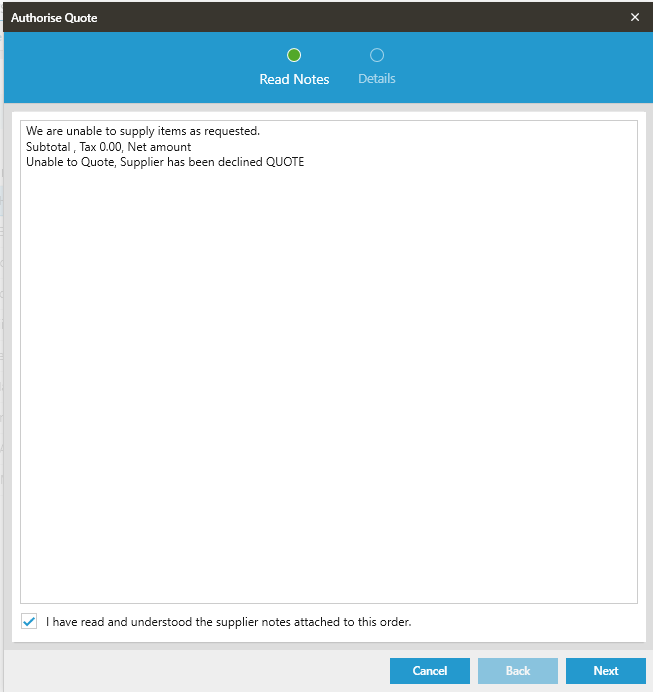
- If the supplier has added any notes to the quote, they must read and acknowledged by ticking the box, then click [Next].
-
On the next page, the account code can be changed if required. This is the last point that the account code can be changed. The account code cannot be left blank, it is a mandatory field.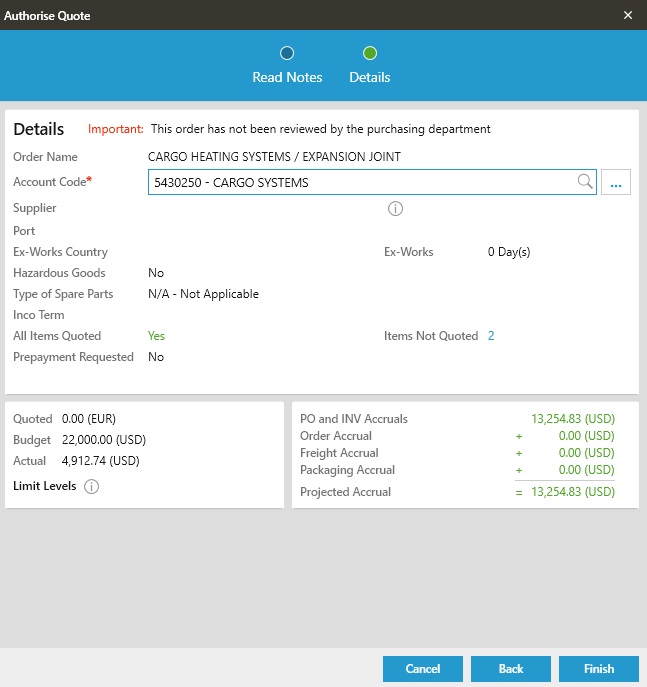
- The budget and quote information can be reviewed. If the quote exceeds the budget (related to the account code), select a justification reason and enter information about the justification. Both of these fields are mandatory.
-
The authorisation can be cancelled by clicking on the Cancel button and closing the window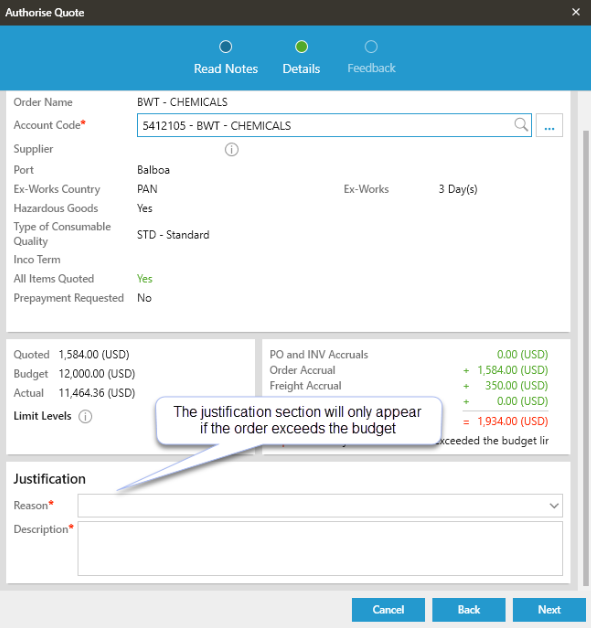
- To proceed to Authorise click on the Finish button for the order to be moved to the Authorised Order stage at a status of TR, tender is then ready to be issued.
If the user selects a supplier that is not the default or the preferred supplier, they must provide feedback. Select a reason from the dropdown menu and type in comments.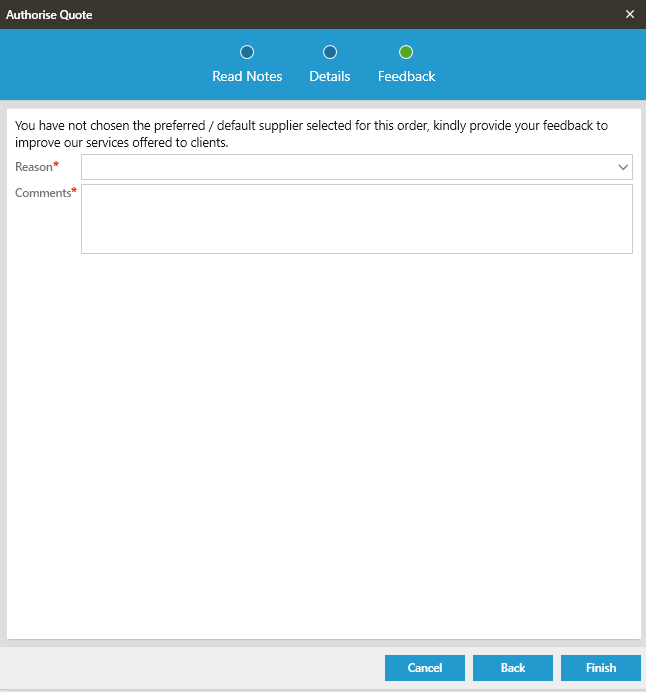
-
If an order is greater or less than its pre-set limits (generally <$250 or >$10,000), additional authorisation is required by the Fleet and Purchasing manager.
-
By selecting the Summary tab the user can see if the order requires further authorisation. The words (in red) Awaiting further authorisation are displayed.
-
Within the order's Authorisation tab, both the Fleet and Purchasing Manager require to click on the Authorise button.
-
As additional security, their user password needs to be entered to complete the authorisation.
IMPORTANT NOTE: The only time an order can be authorised by a Supt., when it is over the Office authorisation limit, is when the order is for Lub Oils
The Supt. can change the account code before authorising the order and the order will not require further authorisation by the Purchasing and Fleet Managers
There is no restriction on the cost for this type of consumables order
-
The Authorisation tab is initially available at the Enquiry stage. The order will be at a status of TA.
-
After an order has been Authorised it will move to the Authorised Enquiry stage where it can be issued by selecting the Delivery Tab.
-
The Authorise tab is also available at the PO stage when the spending limit for the vessel / office has been exceeded.
If a member of the purchase team increases a purchase order accrual, the application notifies the appropriate user that approval is required for the increase.
To do this:
- Select any order that is at the PO Stage then click on the Summary tab.
- Click on the [Edit Outstanding] pencil icon in the Cost grid
-
Change the goods / service and freight / delivery balances where required. The total will be calculated automatically.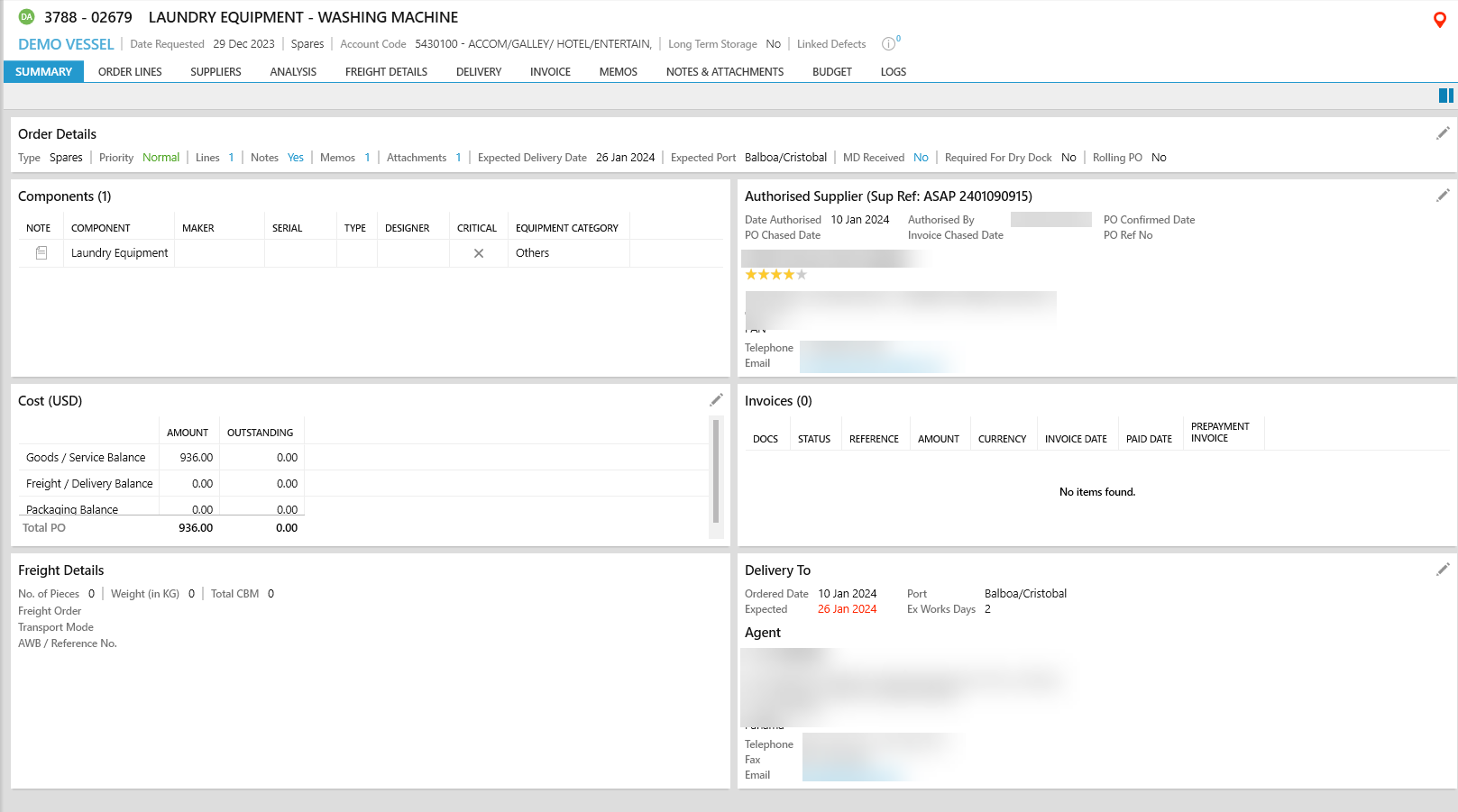
- The Justification field requires the user to enter the reason why the accrual was increased (entered by the purchasing team).
-
Enter any relevant text into the Justification field, then click [Save].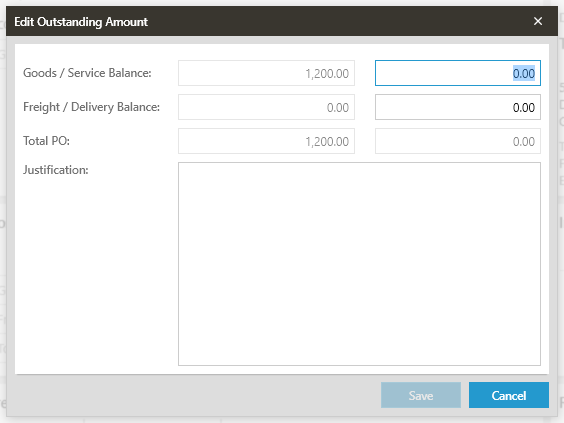
-
When a supplier sends an invoice, there may be discrepancies which must be authorised by the technical superintendent (if they are increased). See Invoice Comparator for more information.
-
When the spend for a Requisition is over that set for the Supt, Fleet and Purchasing Manager it must be authorised again by the Senior Manager i.e. Technical Director or the Client .
-
Further authorisation is required for Clients authorising orders - the Client has to enter a password to authorise the order via Windows authentication whenever they want to authorise an order. The client is prompted to enter the password before authorisation can take place.