Invoice Comparator
| Audience: | All users can view information. The user's role determines the functionality available to the user. |
| Last Reviewed: | 27 January 2026 |
| Introduction: | This topic explains how to use the Comparator, which compares and matches invoices with purchase orders |
| See also: | Creating and Editing Manual Invoices or Credit Notes, Searching Invoices |

The ShipSure Comparator allows the user to compare and match the invoices received from suppliers with the purchase orders sent to suppliers.
The Comparator can also be used to authorise, process and deal with any discrepancies.
The application has also been amended to give a more complete view of all Purchasing invoices in the approval process associated to each vessel and where they currently sit in the process. The view can be filtered as required.
The Business rules applied to the handling, processing and allocation of vessels to Users have not changed.

The Comparator screen can be accessed from both the Marine Purchasing module and the Vessel Finance module.
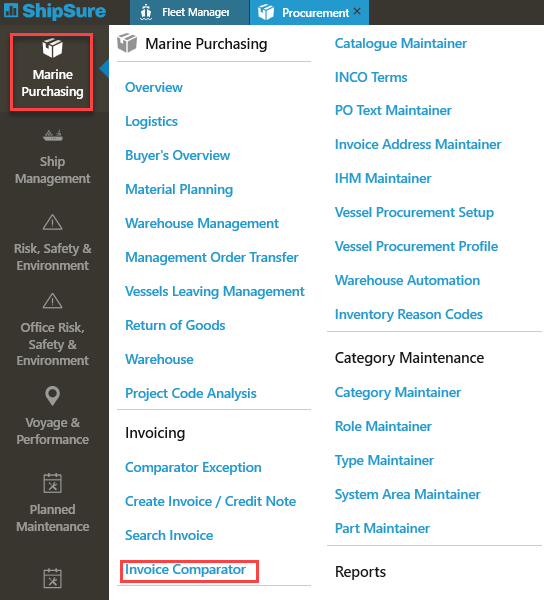
To access via the Marine Purchasing module, click on the ShipSure icon, Marine Purchasing and click on the Invoice Comparator icon.
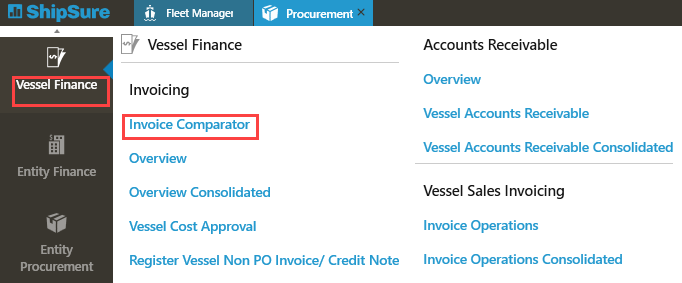
To access via the Vessel Finance module, click on the ShipSure icon, Vessel Finance and click on the Invoice Comparator icon.
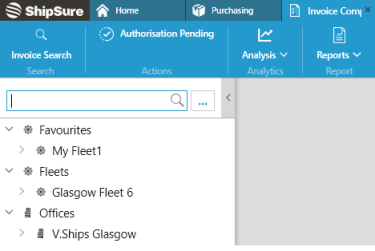
Using either option to open the Comparator, now select a vessel by either entering the vessel name or selecting a vessel from the Favourites, Fleets or Office tree.
The Invoice Comparator opening screen below lists the users who have actions registered against them for the selected vessel.
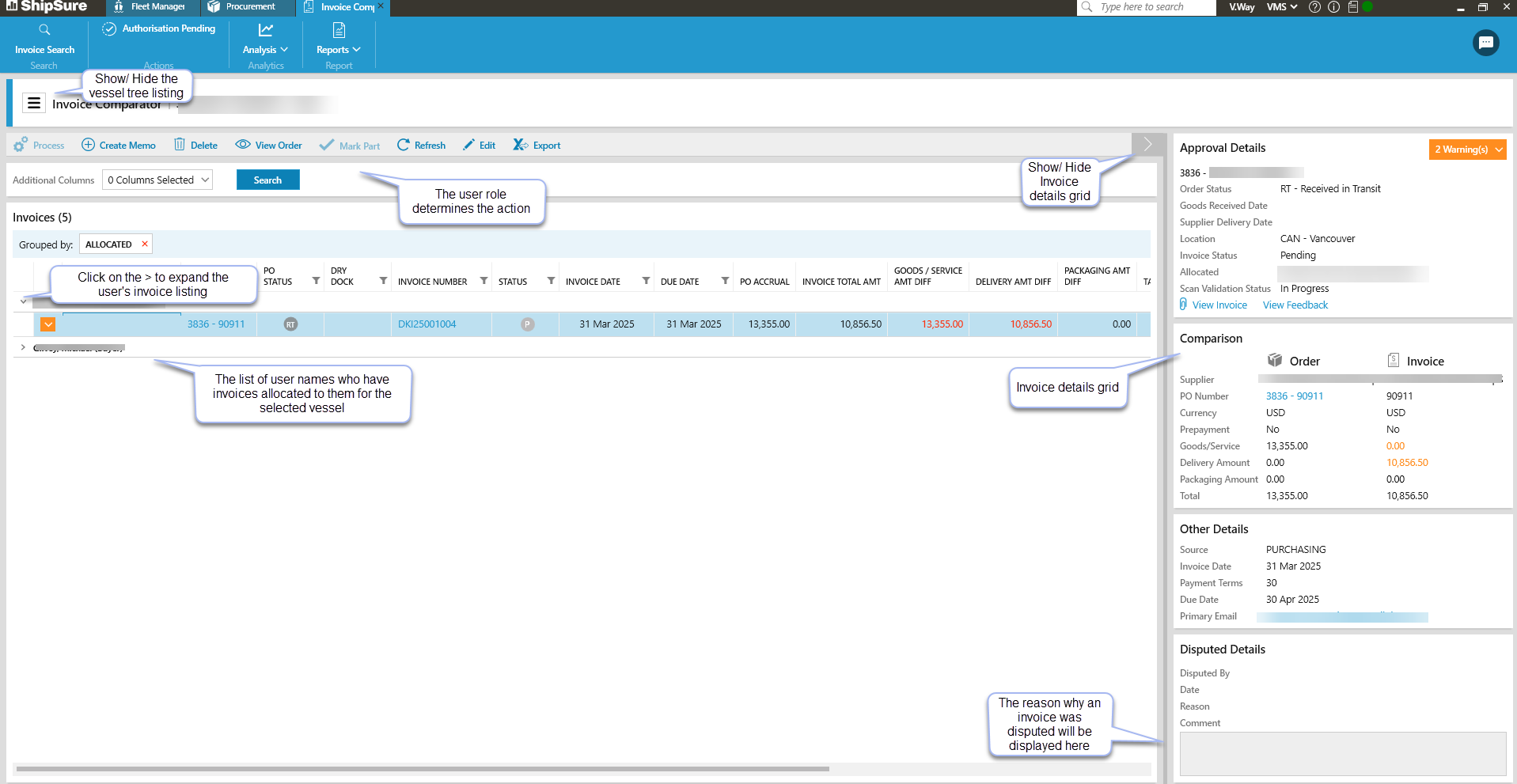
By expanding the > beside the user name the grid will expand to display all of the invoices associated with each user
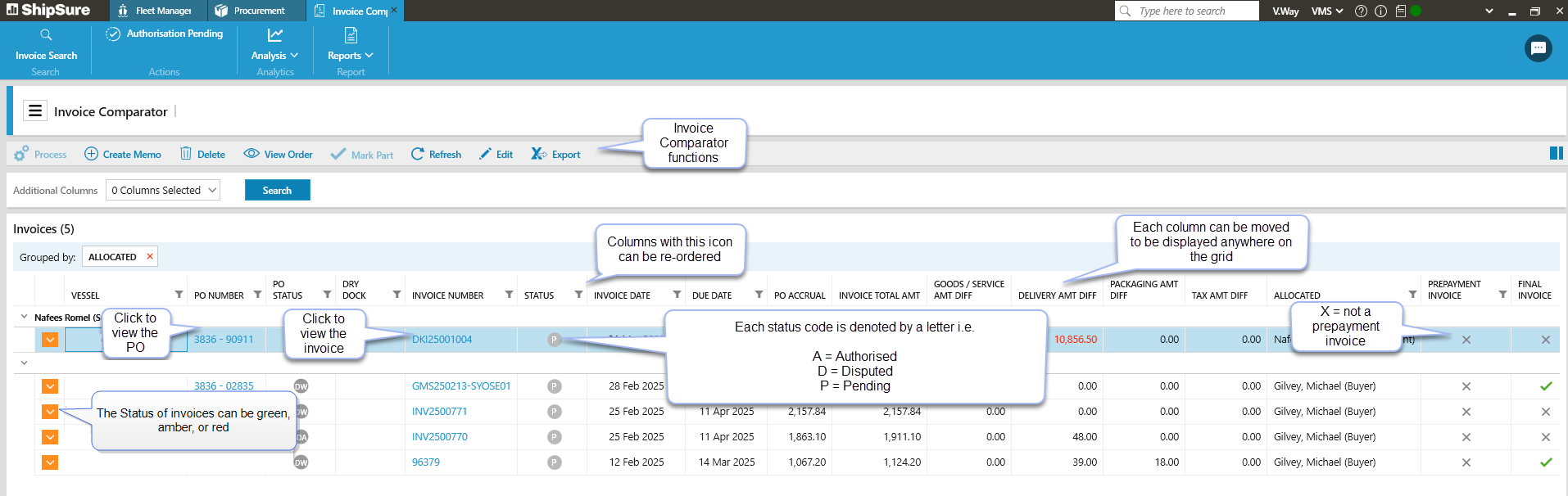
Additional information can be viewed about any invoice by right-clicking the invoice and selecting [Show Details].
The reasons associated with these statuses, and how to deal with them, are:
| Status | Problem | Fix |
 - Red - Red |
Purchase order and invoice currencies don't match |
Click the invoice number to view the scanned invoice. If the invoice currency / purchase order has been entered incorrectly:
|
|
No matching purchasing order / different supplier shown on the purchase order and invoice |
If no matching purchasing order exists, a new requisition is to be created and progressed through to a purchase order. If the wrong supplier is shown:
|
|
| Incorrect order status (i.e. the order still has a status of requisition or enquiry) | The order should be progressed through to the Purchase Order stage. | |
 - Amber - Amber |
Purchase Order and Invoice goods totals don't match, e.g. Invoice Amount is greater than the accrual in Purchase Order |
If the invoice amount is less than the accrual, verify with the vessel if this is a "part" invoice. The application will prompt the user to verify full / part invoice when processing the invoice. If the order is complete, then ask the ship to record as RV, then in the comparator, decrease the accrual and process the invoice. If the invoice amount is more than the accrual, then follows the steps above. However, the superintendent will also be required to approve the change. |
| If any of the Goods, Freight or VAT totals do not match in both the purchase order and invoice (even if the final totals do match). |
If the Invoice allocation amounts (goods, freight or vat) have been entered incorrectly, but the PO and the invoice still match, the Purchasing Manager should amend the allocation of the amounts in the Comparator screen. This will always require a superintendent's approval, because at least one of the amounts will be increasing. To do this:
Should the recorded invoice total amount differ from the actual invoice total, create a memo to the Invoice hub to amend the original entry (scanned information). This is done outside ShipSure. |
|
| Freight amount in the invoice is greater than the limit (usually $500). | Where Freight is greater than the default amount, but all other items match, the purchasing view in the Comparator will not display the invoice. It will be shown as an amber invoice in the Technical view. The Superintendent should authorise or dispute through the Comparator. | |
| The order has not yet been received (its status is NOT SW, RT, RA or RV) |
Check the scanned copy of the invoice to determine if a stamped delivery note is attached. Use the memo function to email the vessel / agent / warehouse / supplier to confirm if goods have been delivered. If the vessel has received the order they should change the status to RV. Once confirmation has been received, you can amend the status in ShipSure to the relevant status. The interim status in the comparator will show as “Waiting Vessel / Agent / Supplier”. |
|
| VAT included on invoice, but no vat applied in Purchasing | For an invoice with VAT, a new ex-vat invoice should be requested from the supplier using the memo function. | |
 - Green: - Green: |
The invoice is ready to be processed. Note - Vessel invoices that are marked as "fast track" are processed automatically and will NOT appear in the Comparator. |
Select the invoice, click the [Process] button at the top, then click [Yes] to confirm. The invoice will then be removed from the comparator although the invoice can still be found by using the invoice search. |
All the warnings relating to any invoice can be viewed by clicking its coloured box, or clicking the "Warnings" box in its details on the right.
- Red and amber invoices will always have at least one warning, green invoices will have no warnings.
- If an invoice has both red AND amber warnings, its status will be red .
The permissions attached to a user's role will determine what the user can view on the screen.
These roles are as follows:
- Buyers, Technical Superintendents & Controllers will jointly see invoices for all vessels assigned to them and to the Fleet Manager.
- Purchasing Managers will see all invoices allocated to the Buyers and Technical staff relative to their office
- Fleet Managers will see all invoices allocated to the Buyers and Technical staff relating to their office.