Merging Requisitions
| Audience: | Purchasing Department |
| Last Updated: | 27 January 2026 |
| Introduction: | This topic explains how you can now merge multiple requisitions with the same account code into a single requisition. |
| See also: | Splitting Requisitions |

For the merging of requisitions to be possible each requisition to be merged MUST have the same account codes.
If they don't have the same account codes it will not possible and an Alert message will appear informing the user that they 'Cannot merge selected requisition'.
This functionality if not available for the Fleet Managers & Superintendents

To merge a requisition:
- Open one of the requisitions you want to merge, then click the [Merge Requisition] button at the top of the screen.
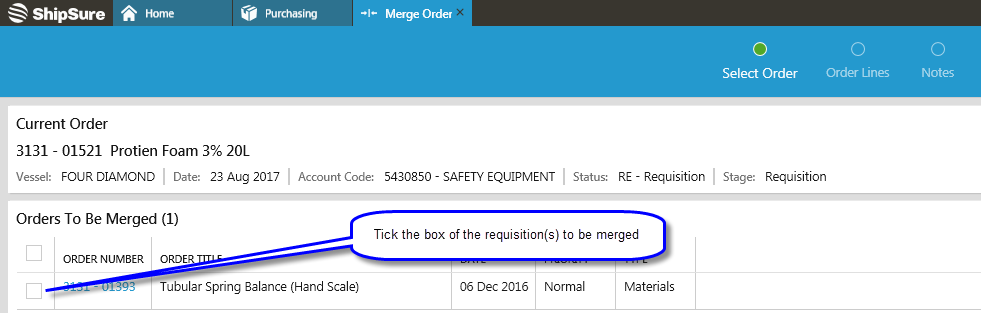
- Tick the box beside each requisition to be merged with the another requisition, then click [Next].
- If the requisition can be merged, ALL the orders will be displayed, select the requisition to be merged then click [Next]
- Lines from the original order are shown in black, and lines from the order(s) selected to merge with will be shown in red. Editing quantities or adding new lines, must be done after the merge.
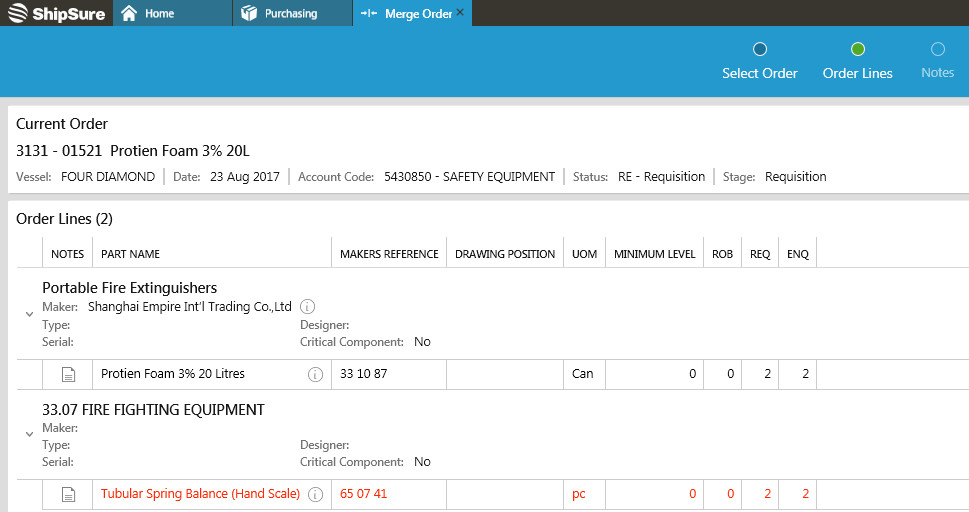
- Click [Next] to proceed
- On the final page, the notes from the original requisition and the requisition(s) to be merged can be viewed. These are collated in the "Final Notes" field, although they can be edited if required.
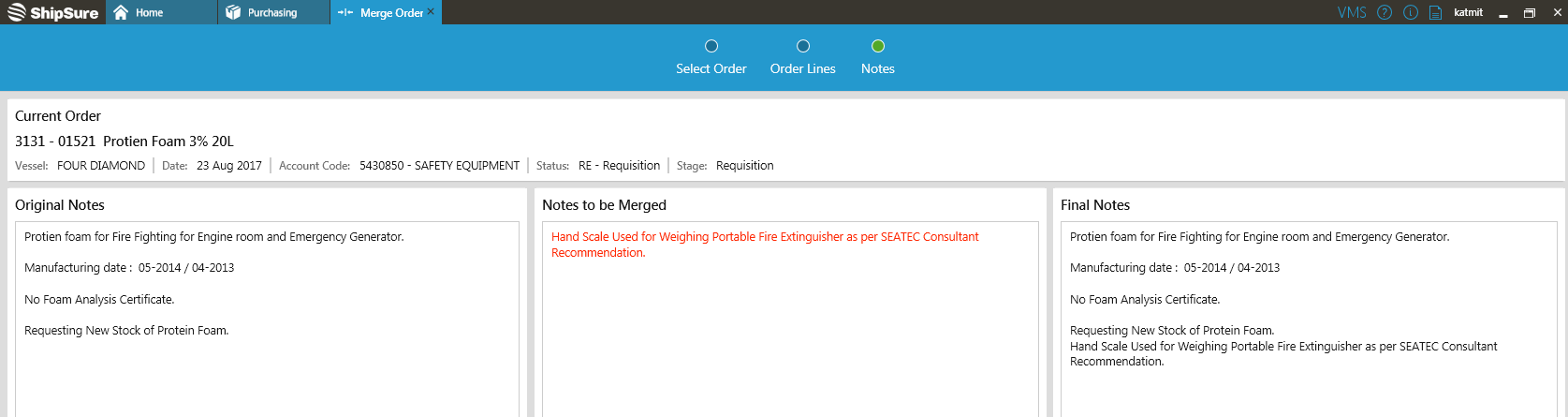
- Click [Finish] to complete the process and the merged requisition will be displayed. The other requisition(s) will no longer exist in ShipSure.
What next?
Review the merged offer before it is converted to an enquiry.