Entering Supplier Quotes
| Audience: | All users can do this although it is usually the responsibility of the Purchasing team |
| Last Reviewed: | 27 January 2026 |
| Introduction: | This topic explains how quotes received from suppliers can be entered into ShipSure. |
| See also: | Issuing Requests for Quotes to Suppliers |

Supplier quotes can be entered against a supplier more than once (e.g. if the supplier sends a revised quote).
If this quote is re-entered, the details of the previous quote will be displayed for editing and only the most recent (updated) quote will be saved.
When quote information from a supplier is received as either a web quote or MTML, it will be entered into the system automatically. If not, it will require to be entered manually into the system.

- In the [Suppliers] tab of the order, select the supplier, then click [Quote].
- If the supplier has been added more than once, ensure you choose the instance with the correct currency.
- If a quote has already been added, some of the fields may already be filled in.
-
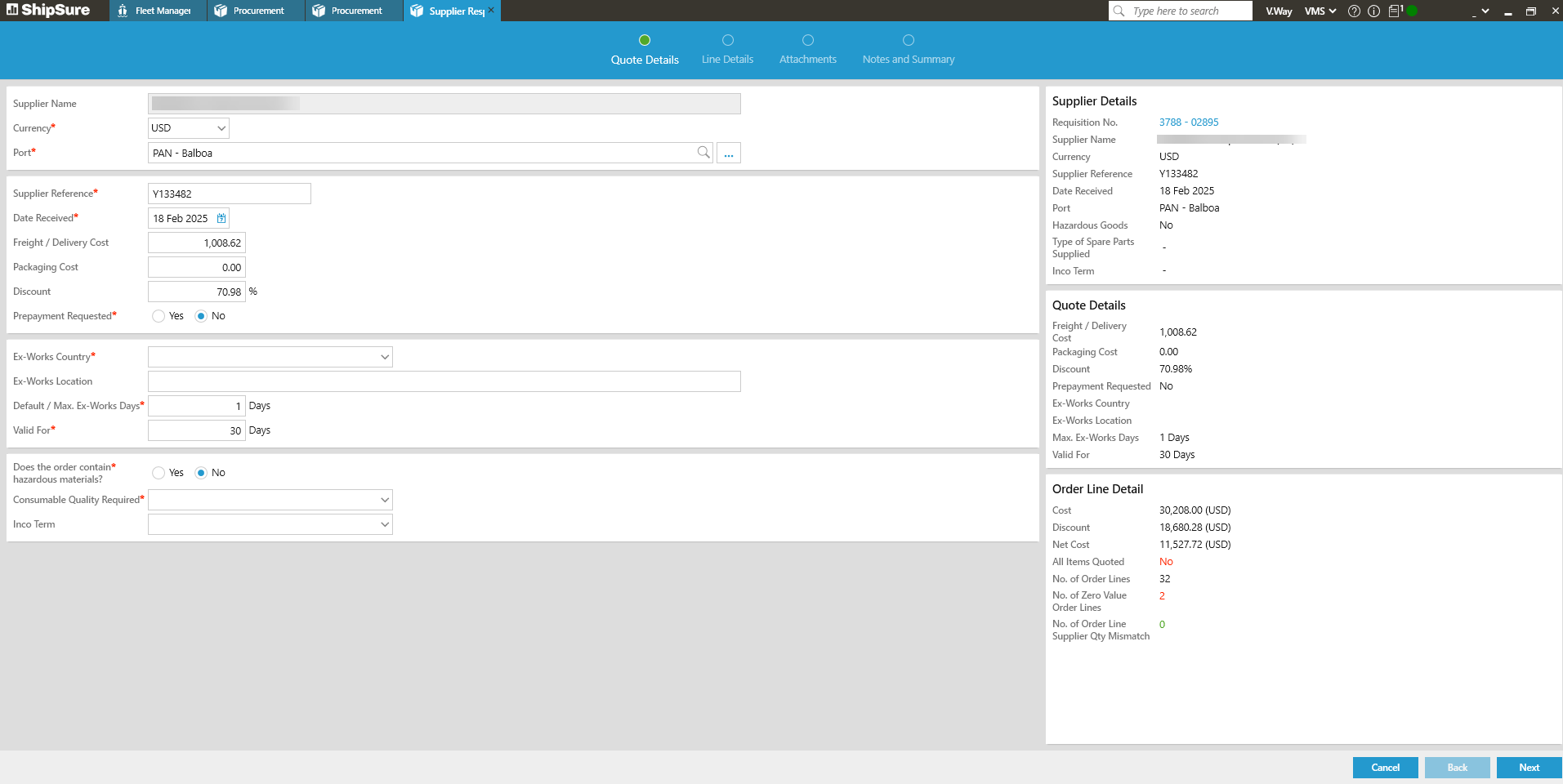
The supplier reference, date received date (this defaults to today's date), discount %, maximum ex-work days (defaults to 1 day), number of days the quote is valid (defaults to 30 days), and whether any hazardous goods are included MUST be entered. These are the items marked with [*] - The type of spare parts that are to be supplied MUST be entered from the dropdown list.
- EPM - Equivalent Parts Manufacturer
- N/A - Not applicable
- NOM - Non-original parts
- OEM - Original Equipment Manufacturer
- OPM - Original Parts Manufacturer
- If a discount / number of ex works days is entered, confirmation is requires if they are to be applied to ALL order lines. This selection can also be changed on the next page.
- The port where the order is to be delivered, freight costs and ex-works country / location can be changed if required.
- On the [Next] page, the quantity, unit price, discount, ex-days (also called lead days) or notes for any line in the order can be edited if required.
-
On the final [Notes and Summary] page order notes can be entered and one of the options below selected, if required.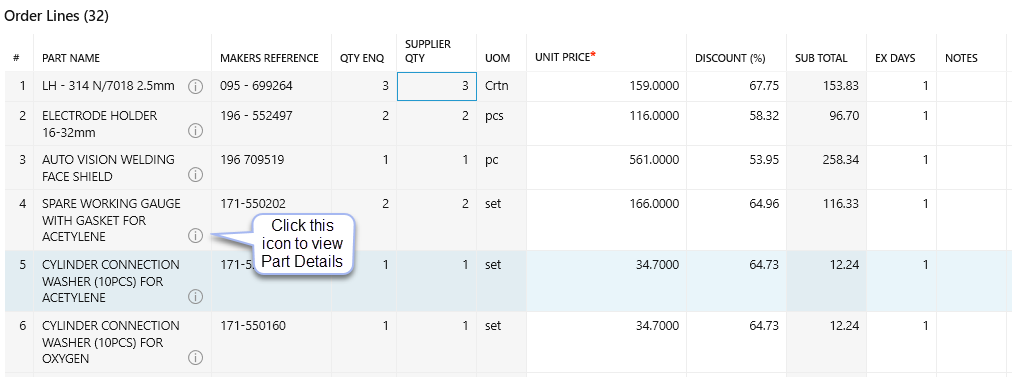
- Submit for Authorisation - This is the Quote Status default for all orders (even if not complete) orders must be authorised.
- Awaiting technical details - Select this option if more information is required before sending the order for authorisation, then create a memo as required. After the required information has been received from the recipient, the quote can be edited accordingly.
- The Mark as TH option can be applied to an order after it a Quote has been entered. The option is available from within the Suppliers Tab. The reason 'why' the order has been marked as such can be viewed by clicking on he Notes icon on the Supplier order line
- All Items Quoted - If every order line has been quoted the screen will display YES. If it has only been partially quoted the screen will display No.
Throughout the "Supplier Quote" process, the summary section on the right of the screen will display key information about the supplier, quote and order lines.
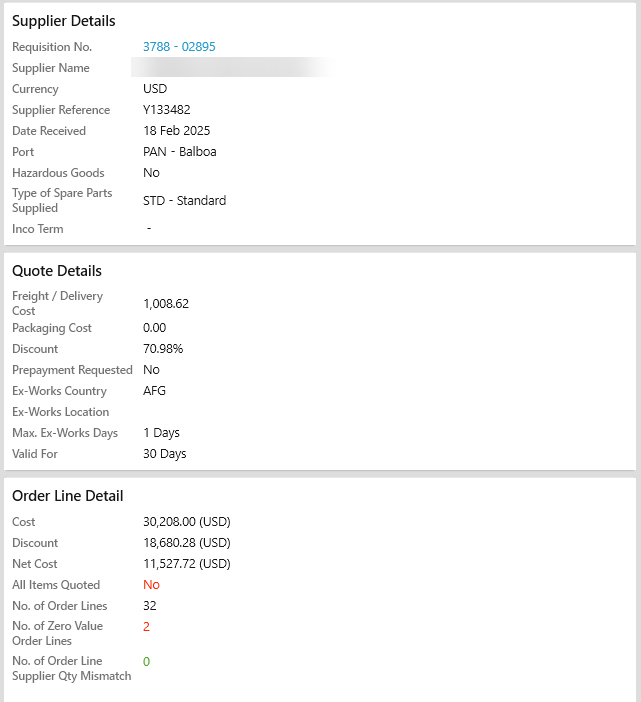
To edit a quote, select a supplier and click the [Quote] button. The process is the same for adding a supplier quote above, except some of the fields (e.g. unit prices) will be completed, although these can change if required.
If a supplier cannot provide a quote:
- In the [Supplier] tab of the order, select the supplier, then click [Decline Quote].
- Select a reason from the dropdown list (e.g. "insufficient time" or "not available locally").
- Then enter all information into the Comments field, then click [Save].
The status of the supplier quote will change to TX.
What Next?
Quote Analysis and Authorising a supplier's quote, see Authorisation.